Documentation

The Complete Mawaeed Guide

Everything you can do with Mawaeed and exactly how to do it, from installing the app to getting paid, for salons, clinics, gyms, courts, restaurants, car rental, chalets and taxi offices. Pick your kind of business to see only what applies to you, and watch the video of any chapter. Written for business owners, not developers.

Install the app

Put your Mawaeed dashboard on your phone or computer, so it opens like an app and booking alerts reach you.

1

Why install it

Mawaeed works in any browser, but installed it opens from your home screen in its own window, full screen, and it can alert you the moment a client books, cancels or moves a visit. On an iPhone, alerts only work once the dashboard is installed. Nothing to download from a store: your browser adds it in three taps.

Tips

  • Tap Install app at the top of your dashboard: it installs in one tap where the browser allows, and shows the right steps where it does not
  • Install it on every phone that should get booking alerts
2

On an iPhone or iPad

Open app.mawaeed.io in Safari and sign in. Tap the Share button (a square with an arrow pointing up; on a newer iPhone it sits inside the ••• button next to the address bar), scroll down, tap Add to Home Screen, then Add. In Chrome on an iPhone it is the same: Share in the address bar, then Add to Home Screen.

Tips

  • No Add to Home Screen in the list? You opened the link from WhatsApp or Instagram. Tap ••• at the top right, choose Open in Safari, then do the steps there
3

On an Android phone

In Chrome, tap ⋮ at the top right, then Add to Home screen (or Install app), then Install. On a Samsung phone with Samsung Internet, tap ☰ at the bottom right, then Add page to, then Home screen. In Firefox, tap ⋮ next to the address bar, then Add app to Home screen.

Tips

  • Opened from WhatsApp or Instagram? Their built-in browser cannot install apps: tap ⋮ and choose Open in Chrome first
  • Installed, your booking alerts get their own notification channel on Android
4

On a computer

In Chrome, click the install icon at the right end of the address bar (a screen with a small arrow), then Install. In Edge, click ⋯, then Apps, then Install this site as an app. On a Mac with Safari, click File in the menu bar, then Add to Dock. Mawaeed then opens in its own window from your dock or taskbar.

5

Turn on booking alerts
The first time you open the installed app, Mawaeed offers to turn on alerts for this device. Tap it, allow notifications when your phone asks, and a test alert arrives so you know it works. From then on every new online booking, cancellation and change pings this device, and tapping the alert opens that day in your calendar. You can see and test each device under Notifications.

Tips

  • Said Not now? The offer comes back after a few days, or switch it on any time under Notifications
  • Alerts are for bookings clients make themselves. The ones you add yourself do not ping you

Getting started

From zero to a live booking page, either by yourself in a few minutes or built for you by our team.

1

Create your account

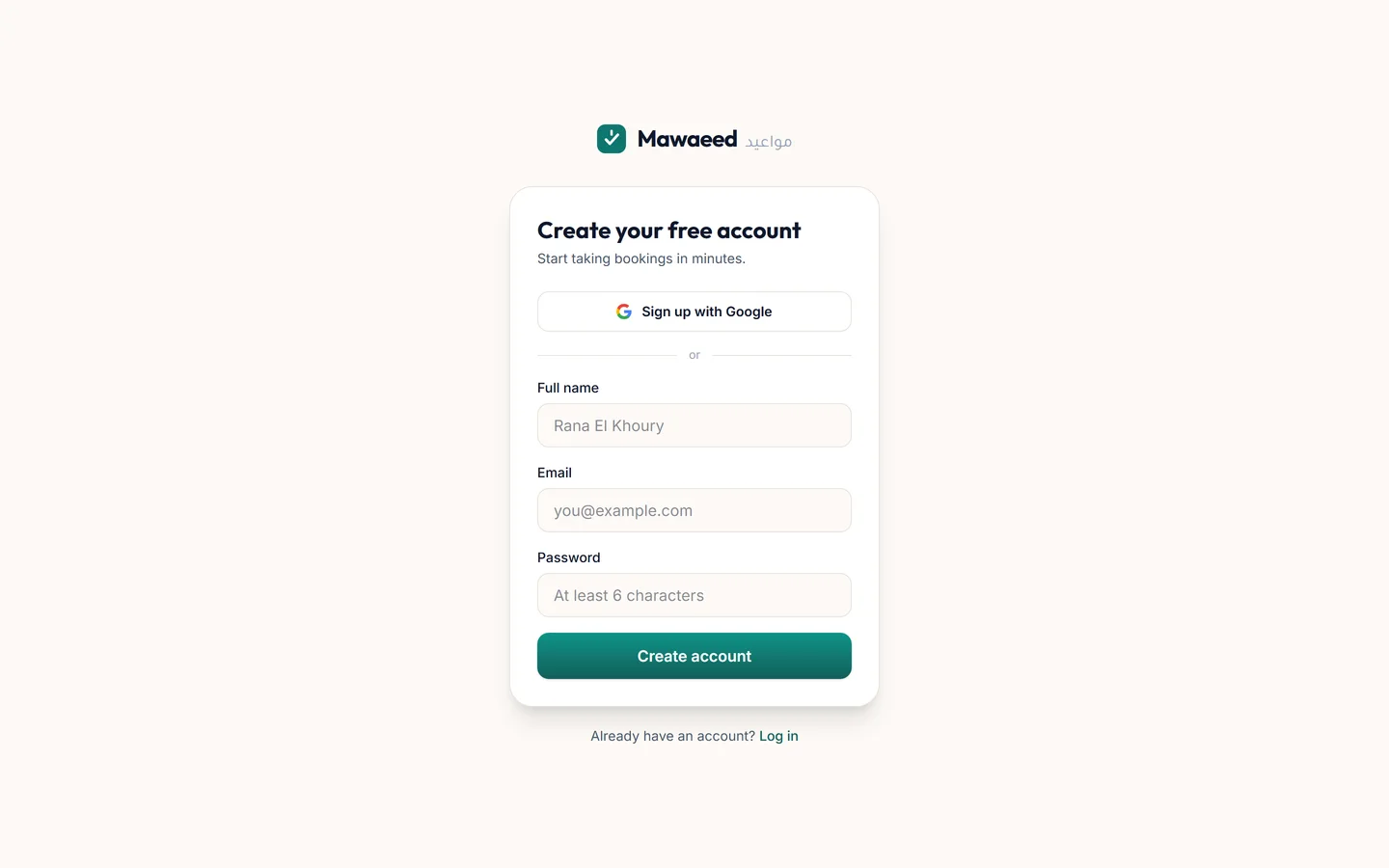
Sign up at mawaeed.io with your name, email, a password and your phone number, or continue with Google. Confirm your email from the link we send you, and you choose how to set up. Your first 14 days are free on the plan you pick, with no payment details needed to start.

The Mawaeed signup page

Tips

  • Check spam if the confirmation email does not arrive within a minute
  • Use the email you actually read: booking alerts and your plan reminders go there
2

Build it for me, or set it up yourself

Right after sign-up you pick one of two ways. Build it for me is one short form: what you do, your services and prices, your hours, your logo and photos. Send it and our team builds your page for you, and the same screen shows where we are; Add something you forgot reopens the form until we start. Set it up myself opens the setup wizard.

Tips

  • Build it for me is free, and you can still change everything yourself afterwards
3

Set up with the onboarding wizard

Pick your kind of business (salons, barbers, clinics, gyms, padel courts, restaurants, car rental, chalets, a taxi office and more), choose what your business uses, pick a look, then add your details, city, services with prices, your team and branches, your weekly hours and how clients pay you. Publish, and your page is live at your-name.mawaeed.io with a designed template for your industry, real images, sections and copy included.

Tips

  • Everything you enter here is editable later, so do not overthink it
  • The kind of business you pick decides your template AND how booking works: appointments, table reservations, rentals by date, stays by the night or taxi rides
  • In a hurry? The first screen lets you skip ahead with sensible defaults
4

Meet your dashboard

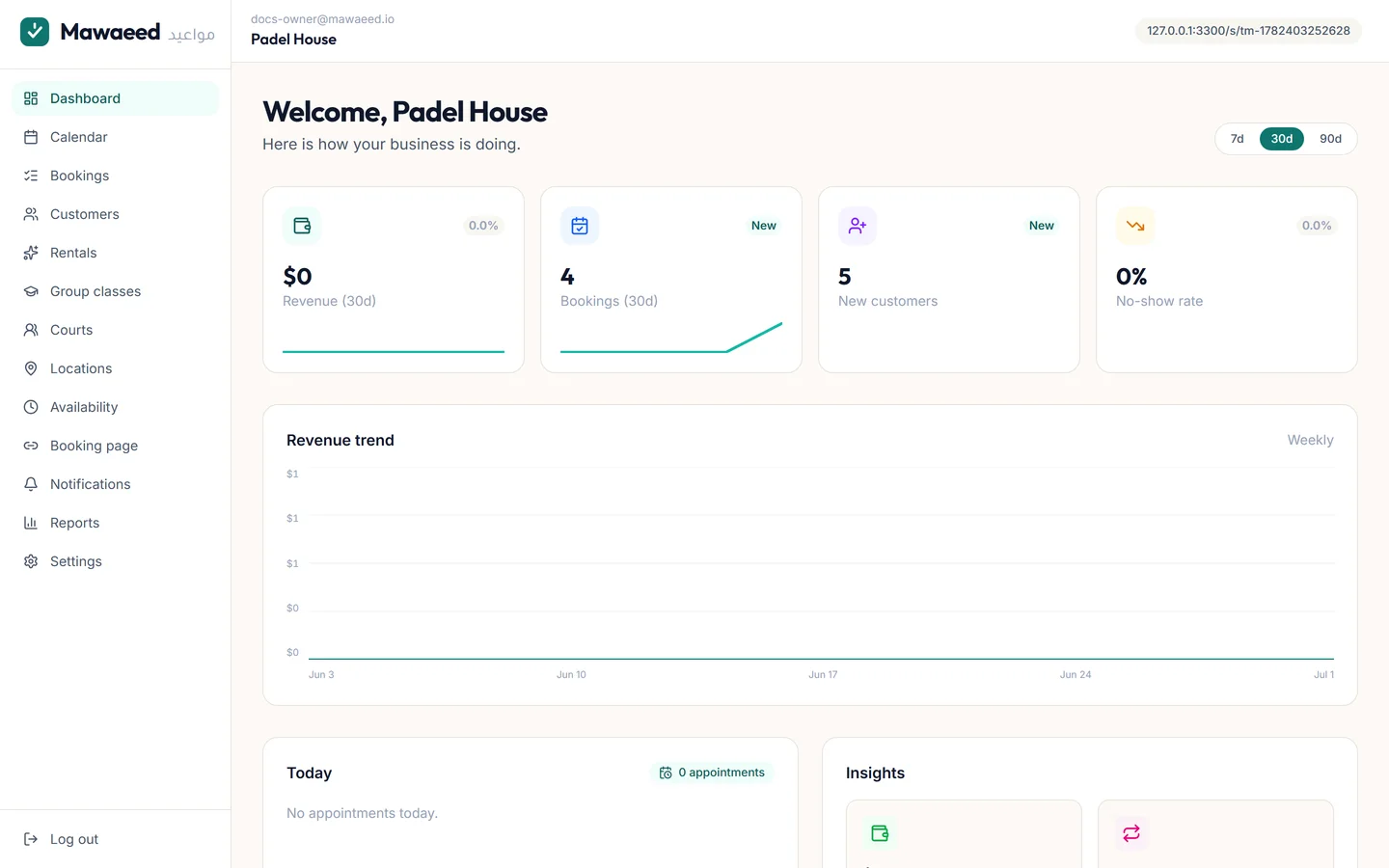
The dashboard is your daily home: money in and bookings for the period you pick, the revenue trend, today's appointments and what is coming up. Everything you manage lives in the menu: on a computer it is the left sidebar, on a phone it opens from the menu button at the top left. Need help? at the top opens a WhatsApp chat with us, already saying which business you are.

The Mawaeed dashboard with numbers and the revenue trend
5

Every page has a guided tour

The first time you open a page, a small card offers a short tour of it. Show me walks you through each part, step by step. Said No thanks? The ? next to every page title replays the tour any time.

6

Share your booking link

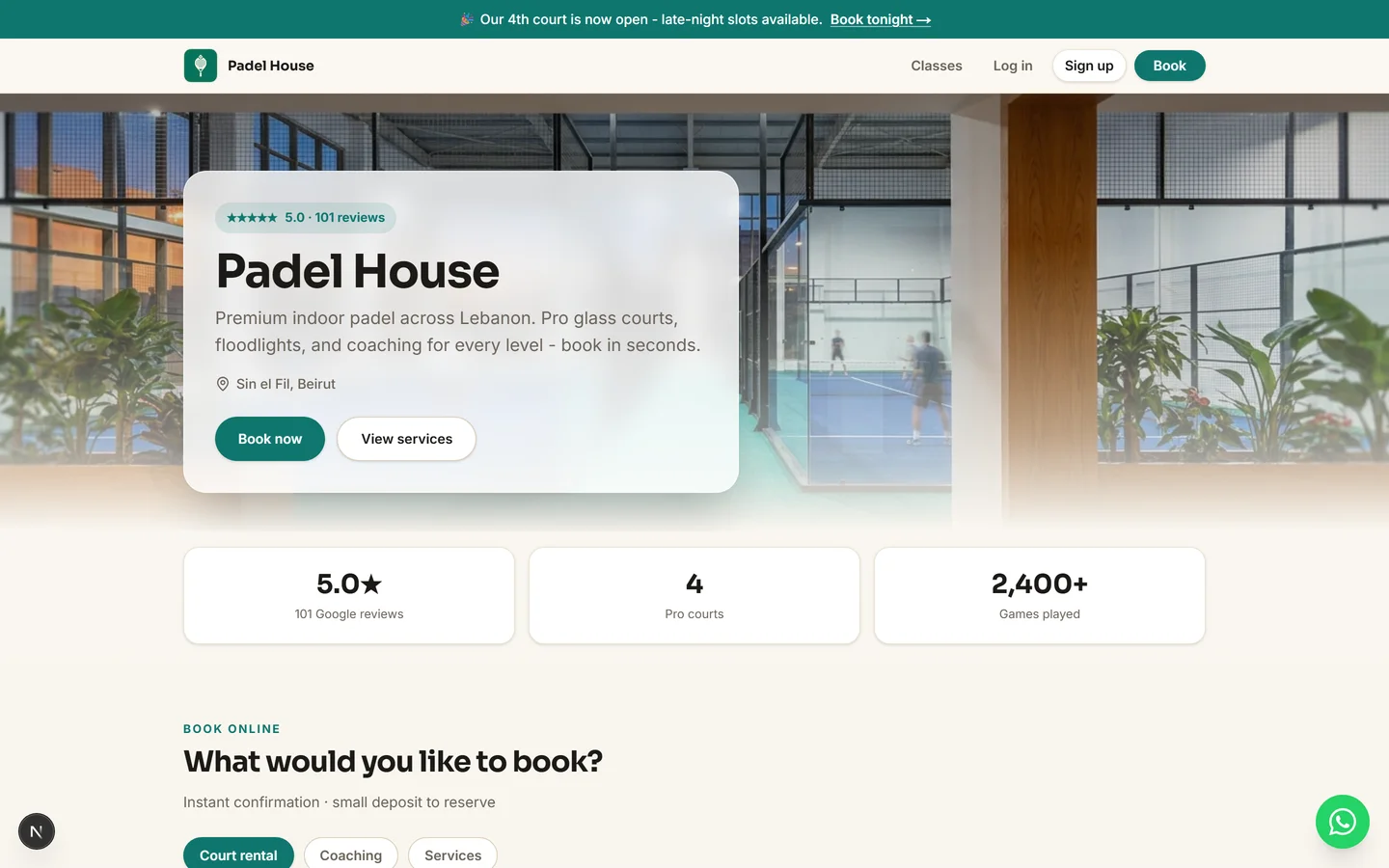
Your page is the link clients book from. Booking page in the menu shows it with a copy button and a QR card you can download and print for your counter. Put the link in your Instagram bio, your WhatsApp status and your Google Business profile, and try a booking yourself from your phone.

A live Mawaeed booking page

Tips

  • The View page link at the top of the dashboard always opens your live page

Your booking page

The page editor gives you full control over how your page looks: no code, live preview.

1

Open the page editor

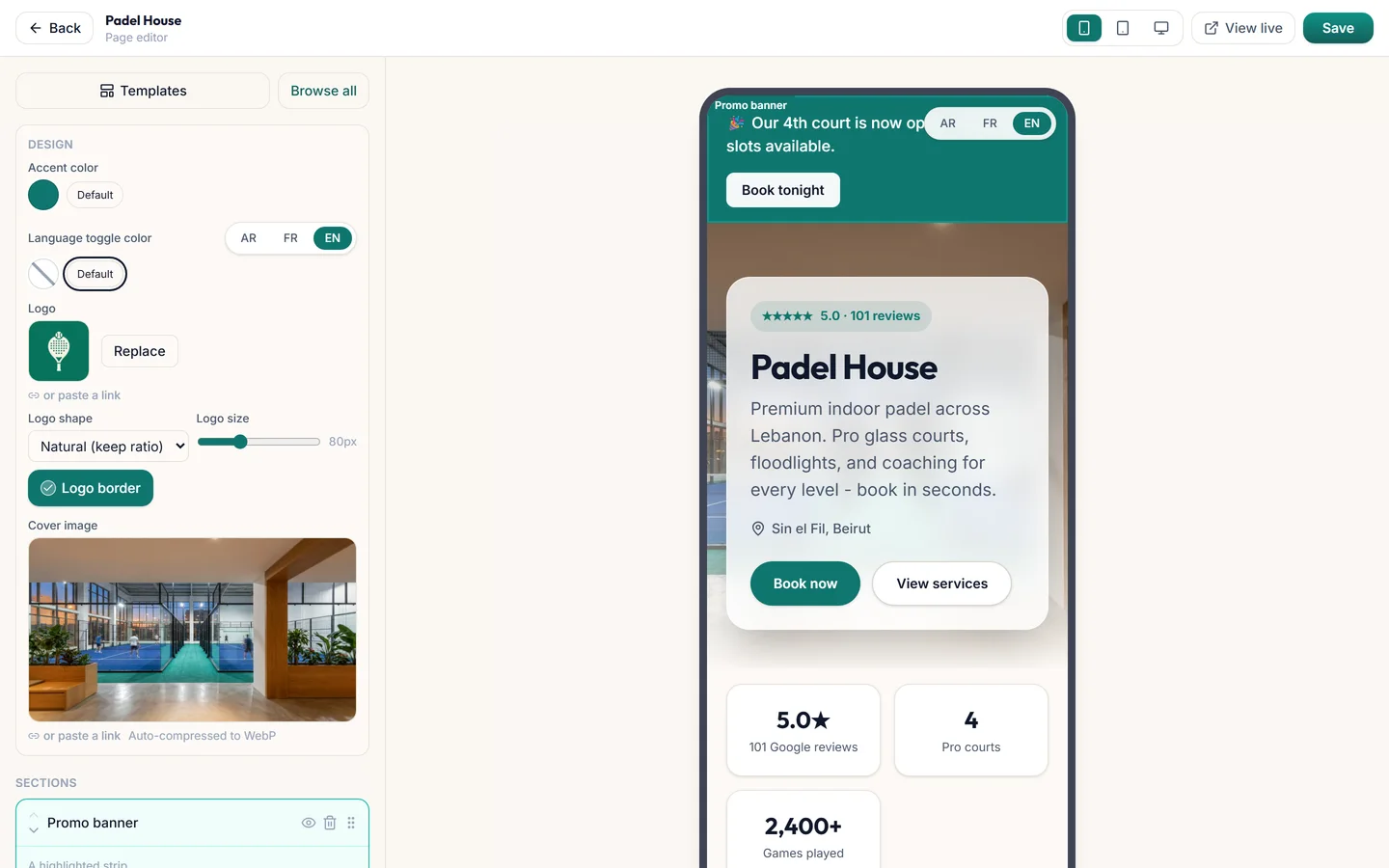
Booking page, then Edit page, opens the editor: your page's sections on the left, a live preview on the right, with phone, tablet and computer views. Add, hide, reorder and edit any section and watch the preview change as you type. It is made for a computer, so you can design comfortably on a big screen.

The page editor with the section list and live preview
2

Change your template

Every industry has several designed templates. Apply another one from Templates: your services, prices and hours stay untouched, only the design changes. Changed your mind? Restore previous design brings back the page you had.

Tips

  • Applying a template replaces your section arrangement. Your business data is never touched
3

Edit sections and pick variants

Each section has several layouts to switch between: hero styles, service layouts (cards, tabs by category, grouped lists, category cards, a photo showcase), gallery styles including an auto-sliding strip, team styles, reviews as a carousel or a grid, and more. Every section takes an eyebrow, a heading and a subtitle. Move a section with the arrows or by dragging, hide it, delete it, and Undo if you slip.

Service categories shown as tabs on the booking page
4

Brand it

Set your main colour and it flows through the whole page: buttons, links, highlights and the booking window. Upload your logo, choose the cover picture, set your name, and tune the header. Save when it looks right.

5

Announcements and extras

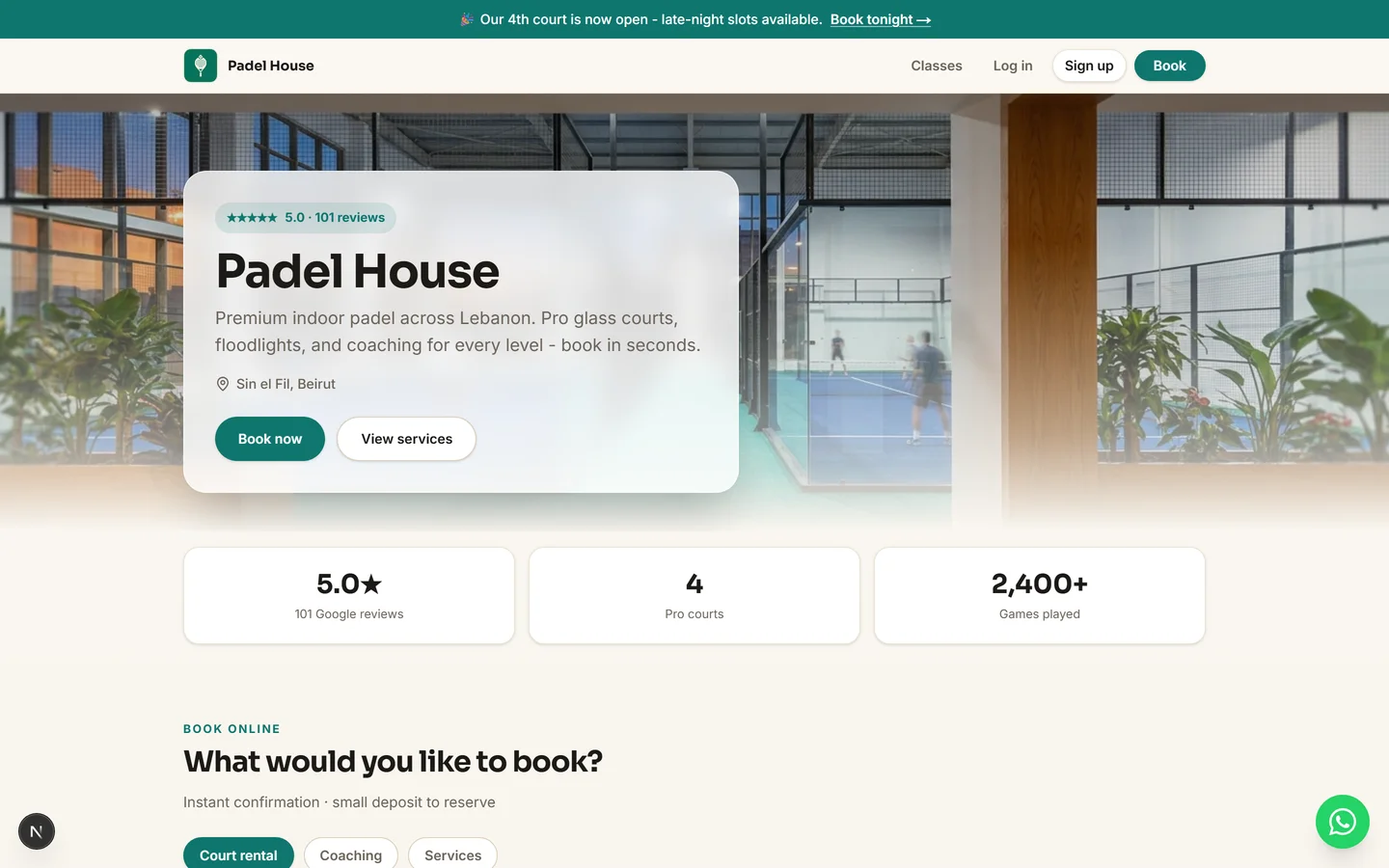
Add a Banner section for a full-width announcement above your header ("Our 4th court is now open. Book tonight"). Other strong extras: the Instagram grid, team bios, an FAQ with your real policies, and reviews. Already on Google? Paste your Maps link and import your real Google reviews into the reviews section.

Tips

  • The banner's button opens the booking window directly
  • Five to seven sections make the best first impression. You can always add more
6

Publish and appear on Google

On the Booking page screen you switch your page live or off, write the title and description Google shows for it, set the small icon of the browser tab, and choose whether a WhatsApp button floats on your page.

Tips

  • Keep the description to one or two plain sentences: what you do and where

Services, team and hours

What can be booked, who provides it, where, and when.

1

Manage your services

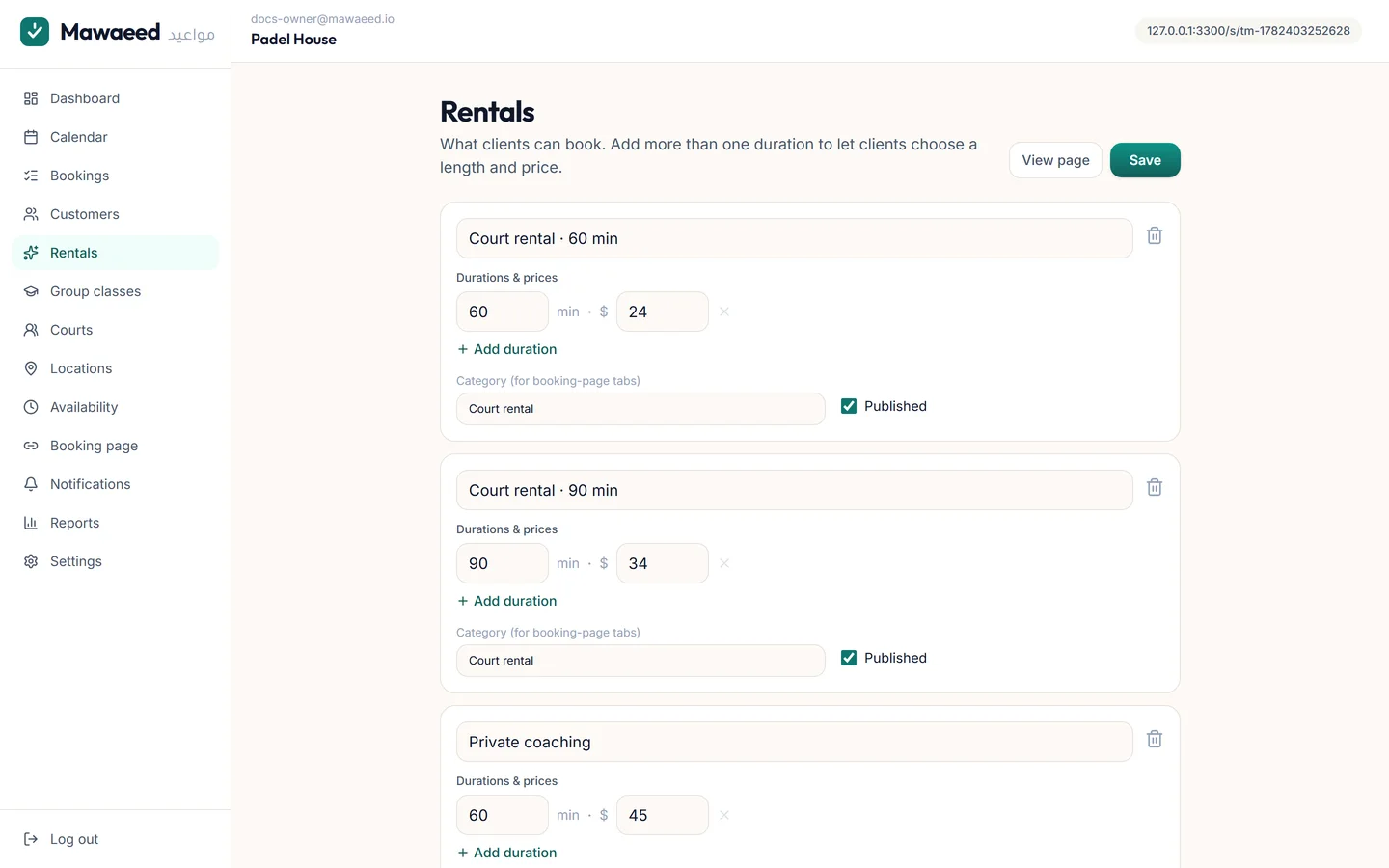
Services is the menu clients book from: name, one or more lengths with prices, an optional category, a photo, and whether it shows on your page. Categories power the richer layouts: tabs, grouped lists and category cards group by them. Add a photo per service and the showcase layout turns your menu into photo cards, perfect for rooms, cars and courts.

The services editor with lengths and categories

Tips

  • Reorder services and categories with Reorder; your page follows the same order
2

Offer several lengths or options

One service can have several lengths at different prices: a massage at 30, 60 or 90 minutes, a court for 60 or 90. Clients get a How long? choice when booking, and the calendar offers correctly sized times for the length they picked.

Tips

  • The first option is the one shown on your page
  • A deposit set as a percentage follows the price of the option chosen
3

Extras and combined services

Extras are small add-ons clients can tick when they book (a nail art, a hair mask), each with its own price and time, and the visit grows by that time. If clients often book two things together, switch on Let clients combine services on the Services page and tick the services that can go together: the client books them in one go and the times add up.

4

Price some work by size, count or the hour

For work that depends on the job (cleaning priced per m2, a session per hour, a price per item), switch on Price some work by size, count or the hour, then give the service its unit price. The client types the number when booking and the total is worked out for them.

5

Add your team

Staff hold the calendars: each person (or court, chair or car, whatever your business books) gets their own bookings, a calendar colour, a photo and the services they do. Clients who book Any available are placed with whoever is free. Give someone time off for a holiday and nobody can book them on those days.

The staff manager

Tips

  • Choose per person who gets an alert when they are booked
6

Set your working hours

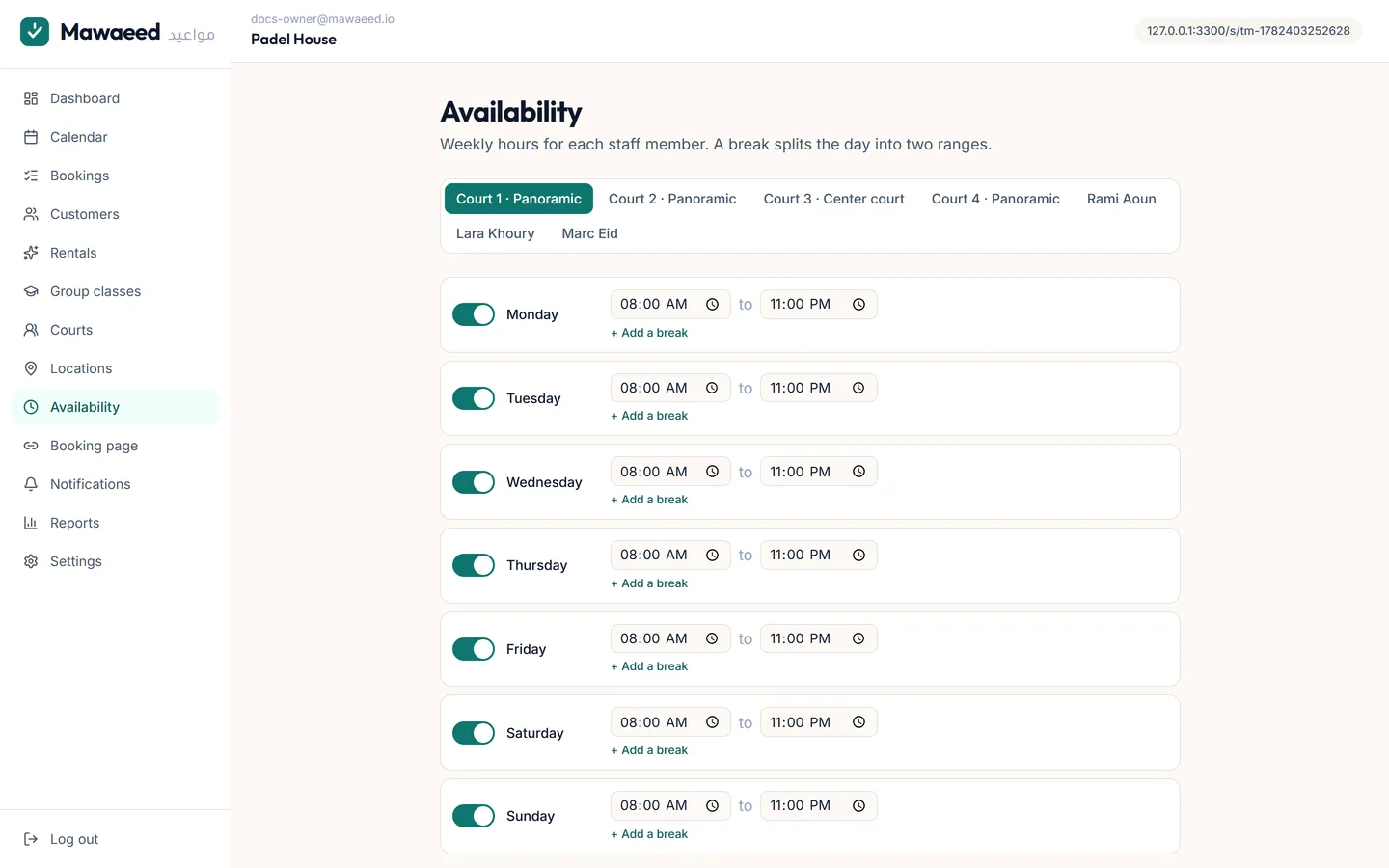
Availability sets the bookable hours per person, including split shifts and breaks. Set one day up exactly the way you want it, then Copy to... the other days. Add exceptions for holidays: those days stop offering times.

The weekly availability editor

Tips

  • Copy to... saves setting up six nearly identical days by hand
7

Choose which days a service runs

Some services only run on certain days: a coach who teaches Saturdays, a treatment your specialist does on Tuesdays. Use the Available on day chips under the service to pick its days. Your booking page greys out the other days for that service.

Tips

  • Availability answers when you are open; this answers which days a service is offered. A bookable time has to pass both
  • You can still add a booking yourself on an off day
8

Run several branches

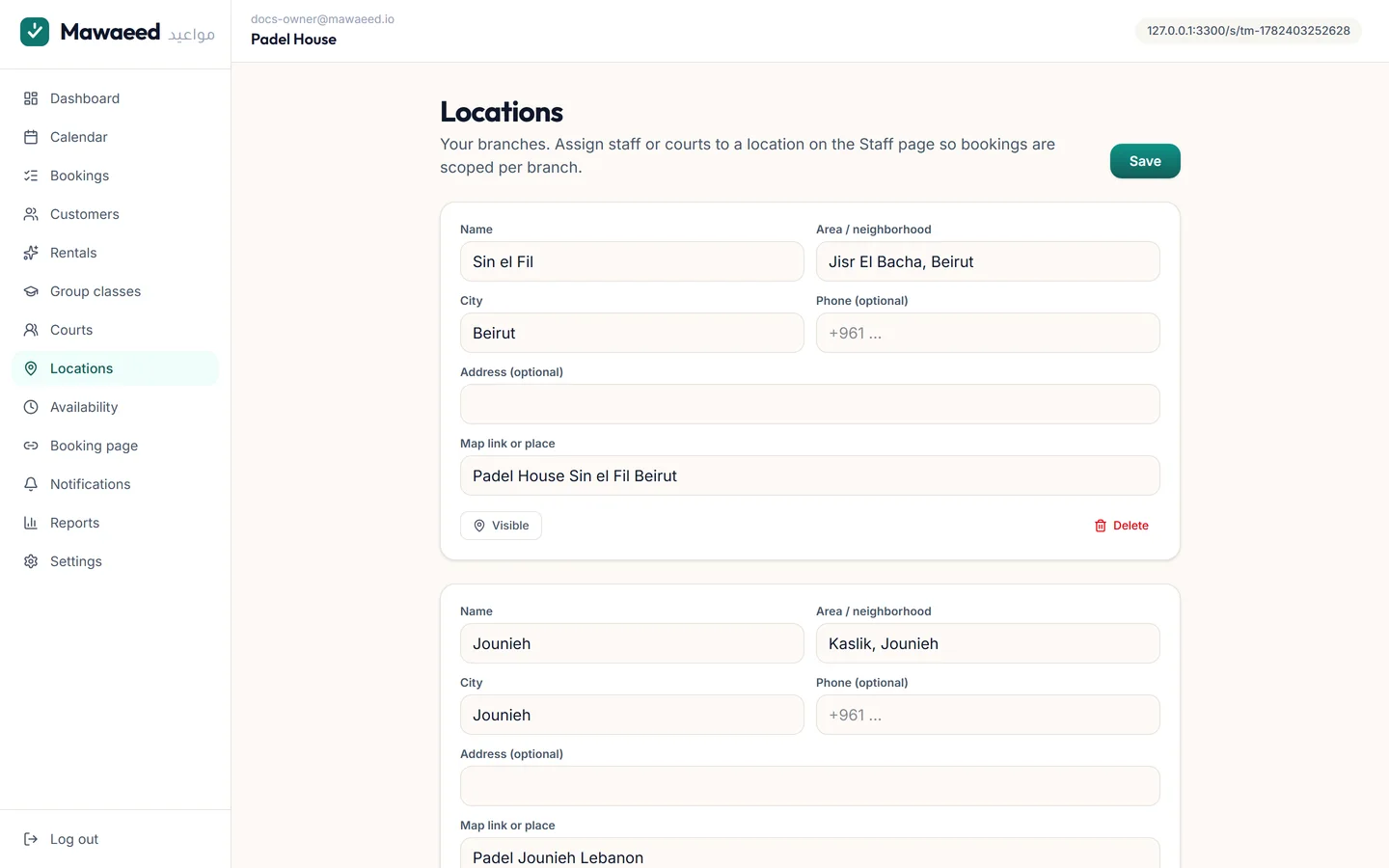
Switch on Multiple locations under Settings, Features, then add your branches under Locations (name, area, map pin, phone) and assign each person or court to a branch on the Staff page. Clients pick their branch in the booking window and only see times that branch can serve. A Locations section on your page shows each branch with its map and a Book button.

The locations manager with branches
9

Go to your clients

If you work at the client's place (home cleaning, a make-up artist, a mobile mechanic), tell Mawaeed under Settings, Business profile: they come to you, you go to them, or both, and the areas you cover. Clients then type their address when they book, and it is on the booking for you.

Bookings and calendar

Where bookings live: the calendar, the list, the ones you add yourself, and the reminders that stop no-shows.

1

Your calendar

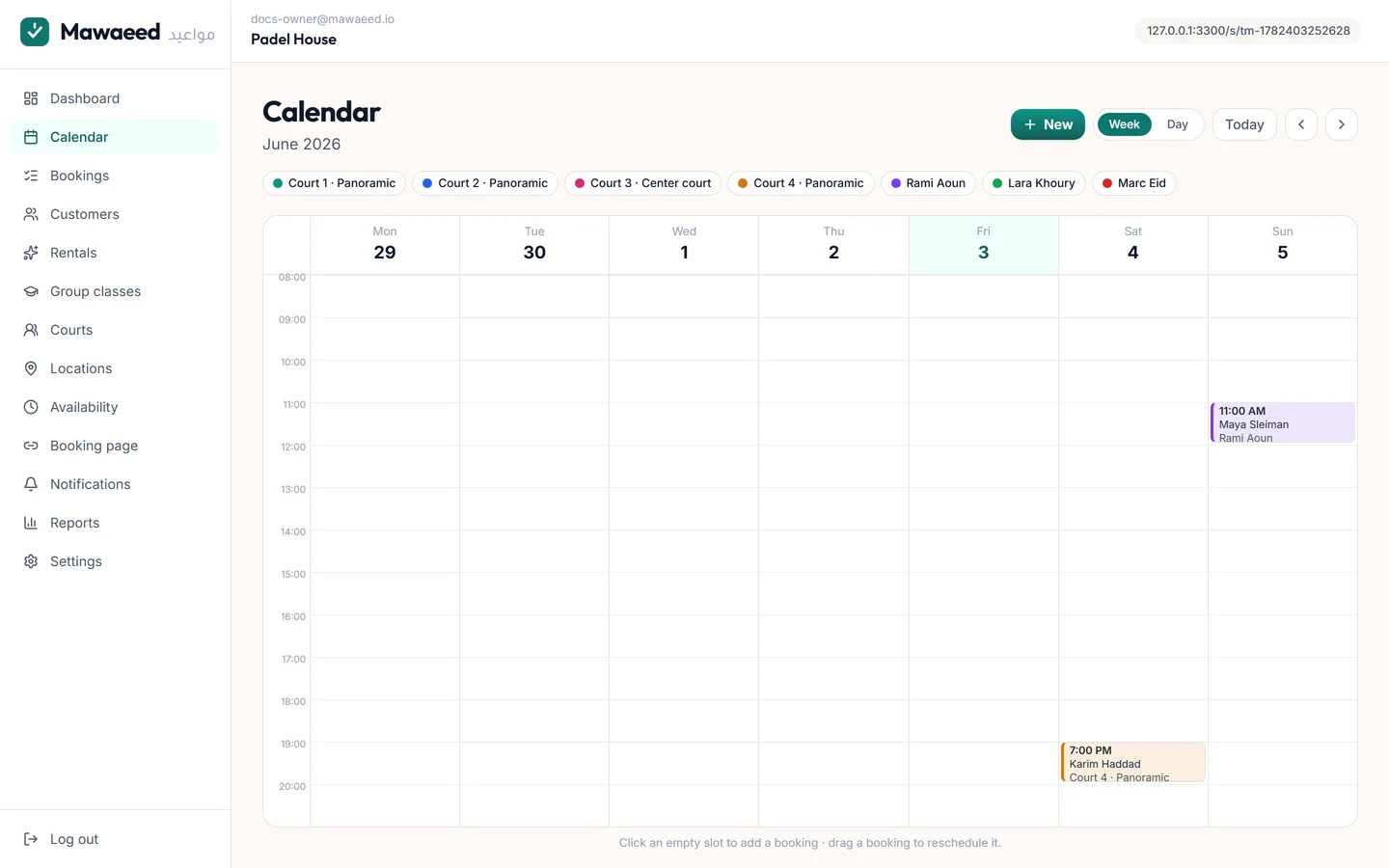
The calendar shows each day and week, colour-coded per person on your team, with a filter to see one person at a time. Tap any booking to open it: the client, the service, the price and notes, with buttons to mark it paid, move it, message the client on WhatsApp or cancel it.

The calendar with colour-coded bookings
2

Add bookings yourself

A phone call or a walk-in? Tap New booking, or tap an empty time on the calendar. Find the client by name or phone (or add a new one), pick the service, the person and the time, and save. Bookings you add yourself can go outside your opening hours, because you know your business.

The New booking window
3

Book a regular every week

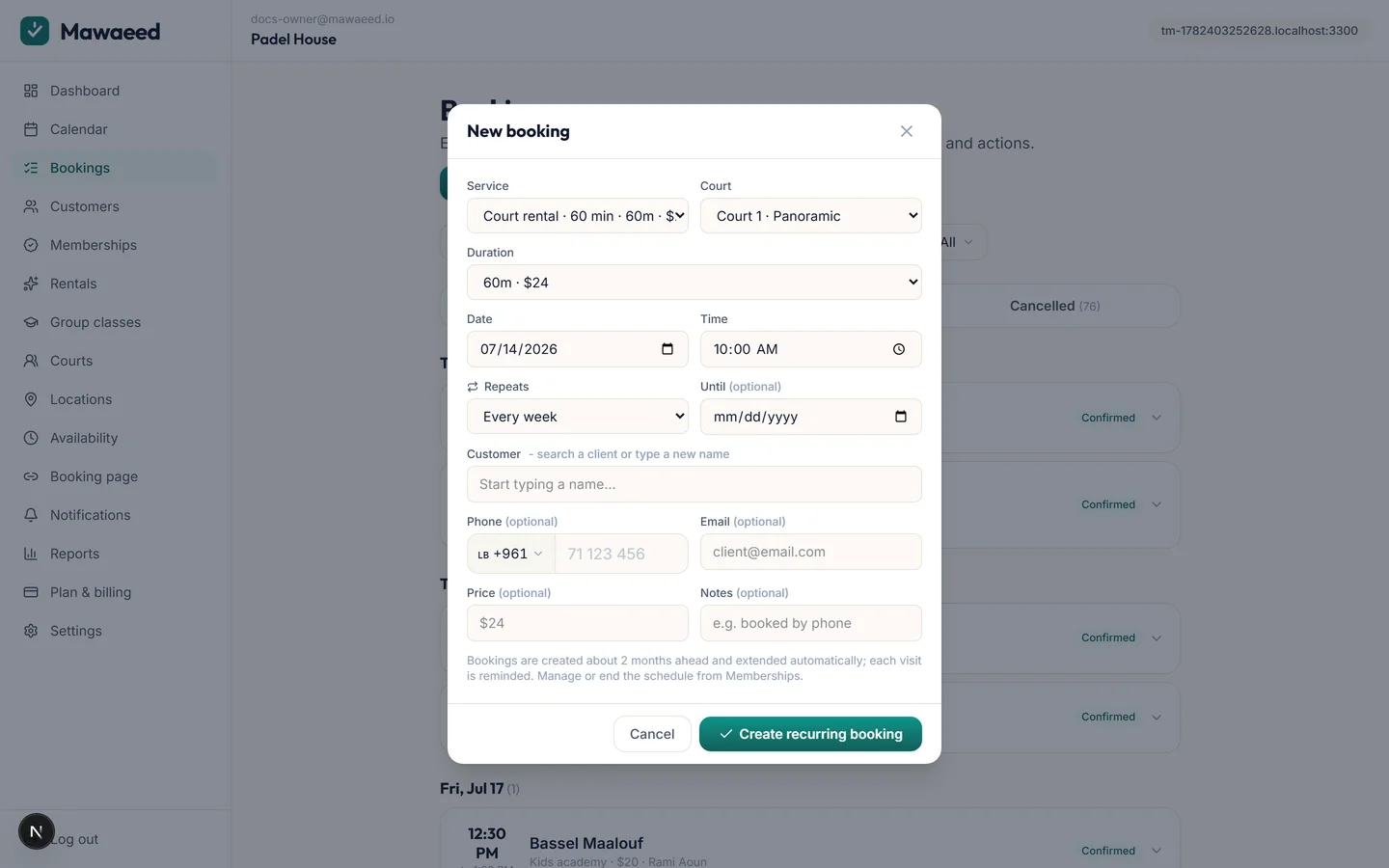
For clients who come on a fixed rhythm, open New booking and choose Repeats: weekly, every two weeks, monthly, or a custom rhythm, with an end date. Mawaeed puts every visit on the calendar and reminds the client before each one. Stop a repeat any time and every future visit is cancelled, reminders included.

The New booking window with Repeats open
4

The bookings list

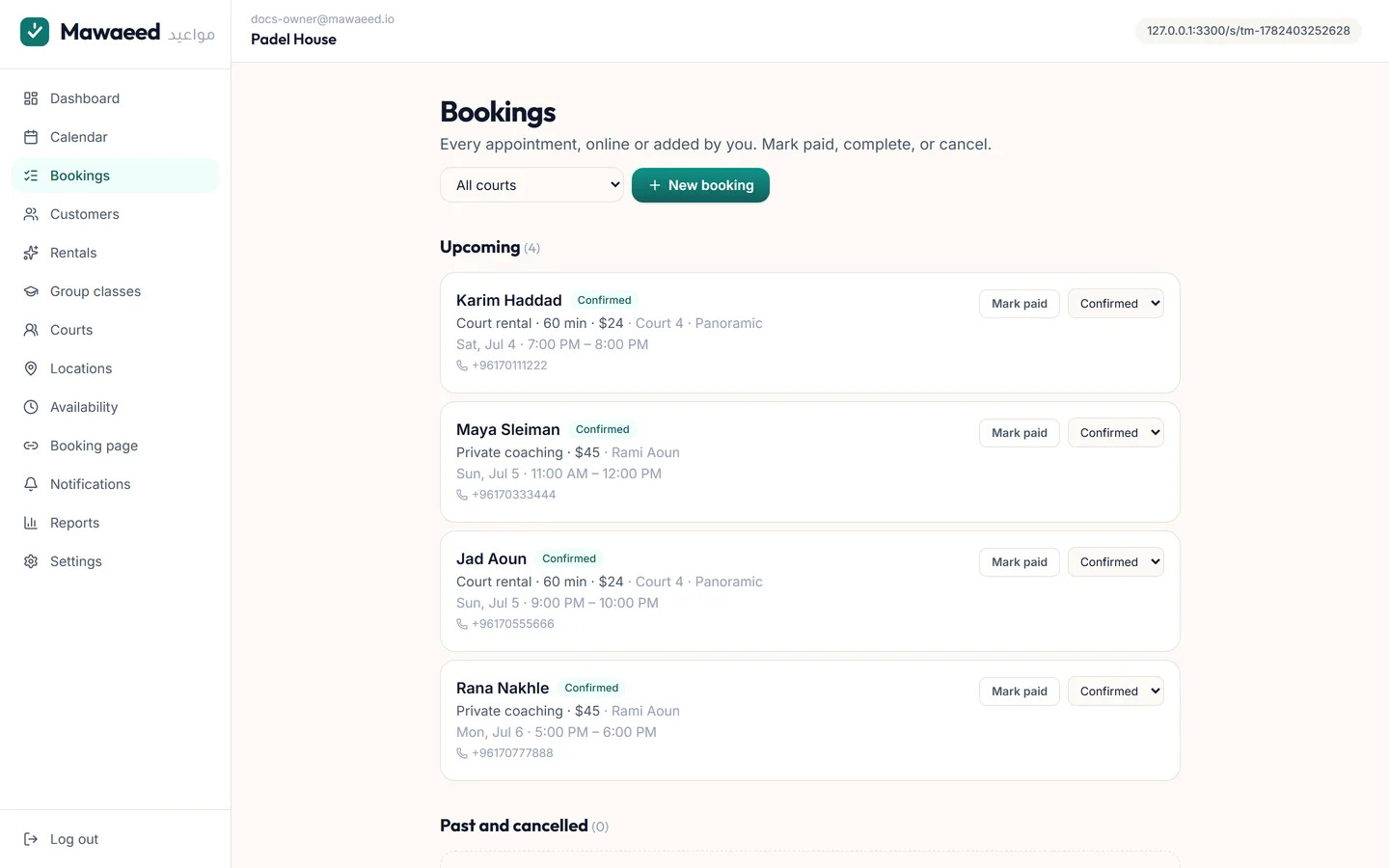
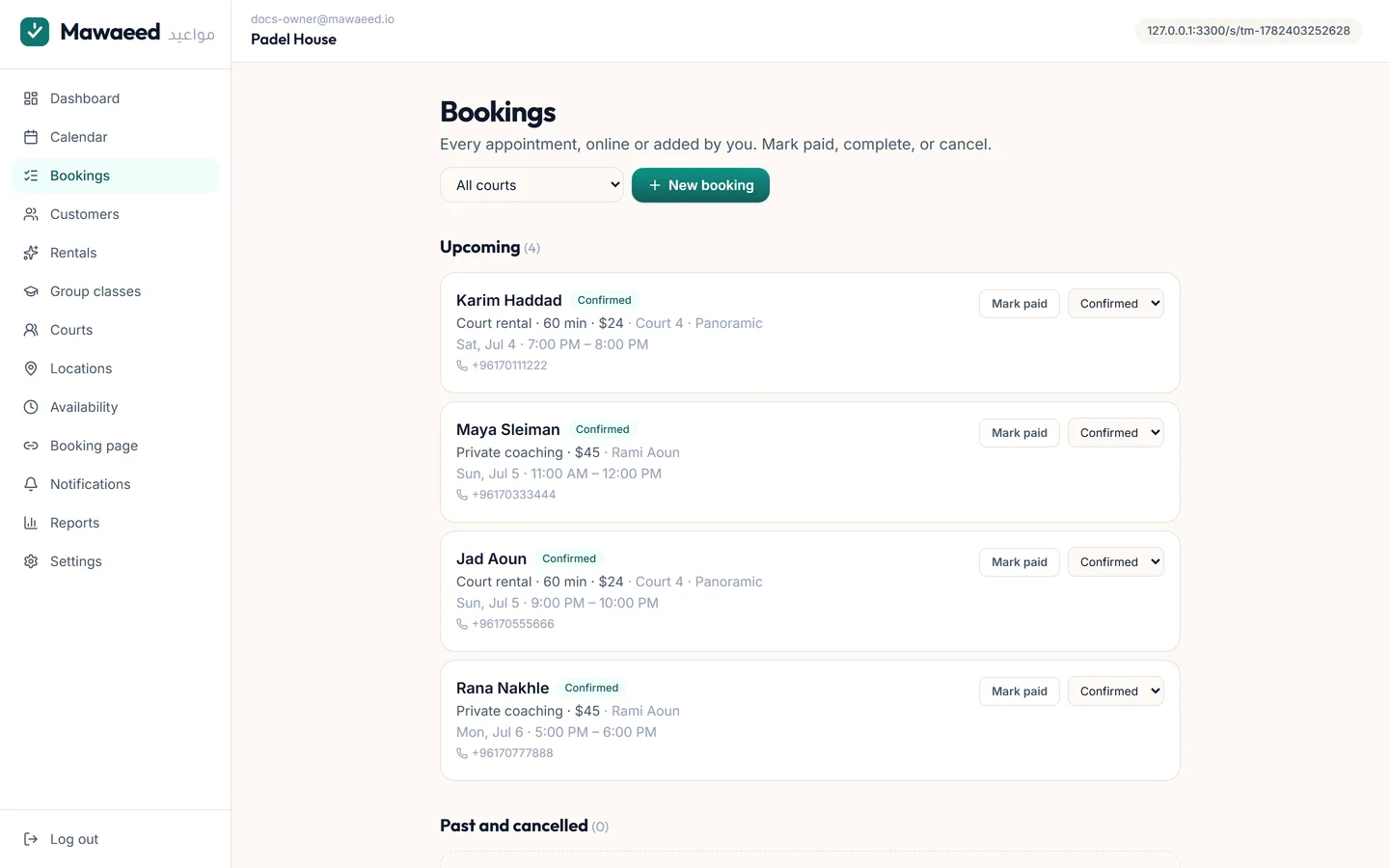
Bookings is the same bookings as a list: Upcoming, History and Cancelled, with search. Open any booking to change it, mark it paid or completed, or cancel it, and reply to the client on WhatsApp in one tap.

The bookings list
5

Confirm bookings by hand

Prefer to approve each online booking before it is final? Switch on confirming bookings yourself under Settings, Booking policy. New online bookings then arrive as requests: Confirm or Decline each one, and the client is told either way.

Tips

  • Leave it off and online bookings are confirmed straight away, which is what most businesses want
6

How clients book

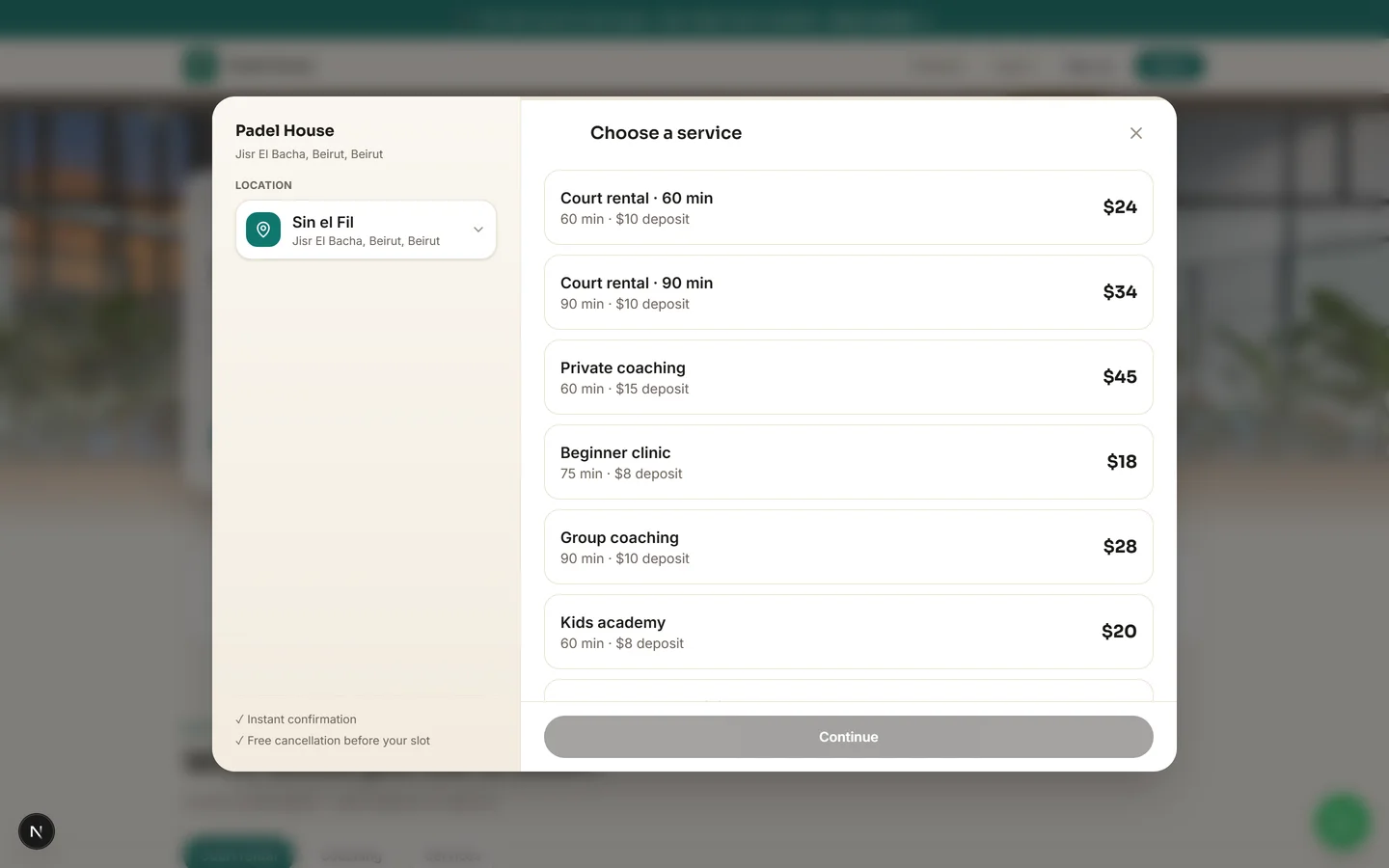
Any Book button opens a fast booking window: the service (and its length), the person, a day and time, then a name and WhatsApp number. The price and any deposit are shown before they confirm. The confirmation carries a manage link where clients cancel or move their booking themselves, within your rules, or add it to their calendar.

The booking window on a live page
7

Automatic reminders

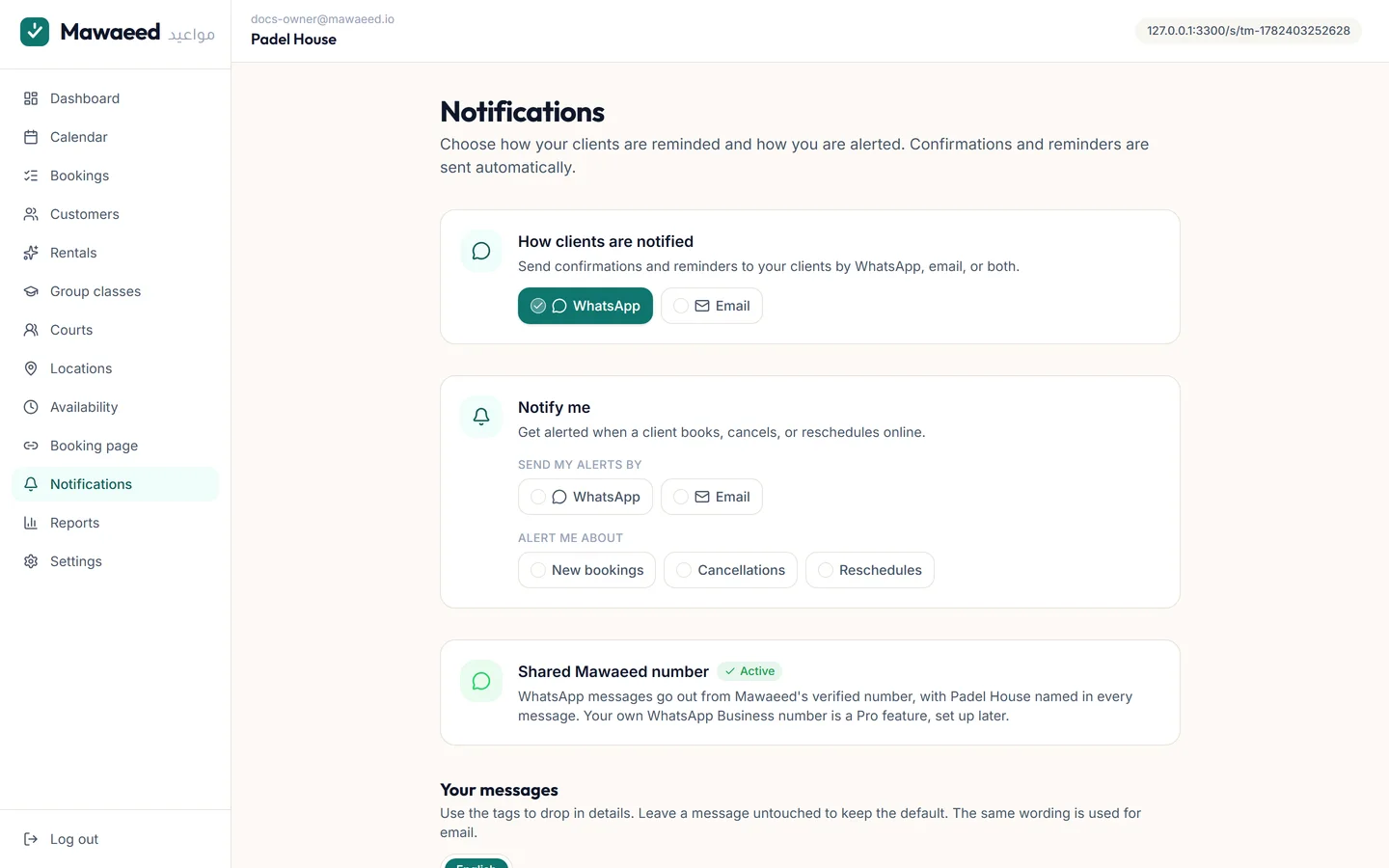
Every booking gets a confirmation straight away, a reminder 24 hours before and another 2 hours before, with your wording. Set the wording and the channels under Notifications.

Notification and reminder settings

Tips

  • The 24 hour reminder is the single biggest no-show killer, so leave it on
8

Remove a test booking for good

Cancelling keeps a booking in your history, which is what you want for real life. For the test bookings you made while setting up, open the booking and use Delete at the end of the buttons. It asks once, then the booking and any reminder not yet sent are gone for good.

Tips

  • Cancel for real bookings, Delete for your own tests. A deleted booking cannot be brought back

Customers

Know your regulars: their visits, their notes, their questions, and their own account.

1

Your customer list

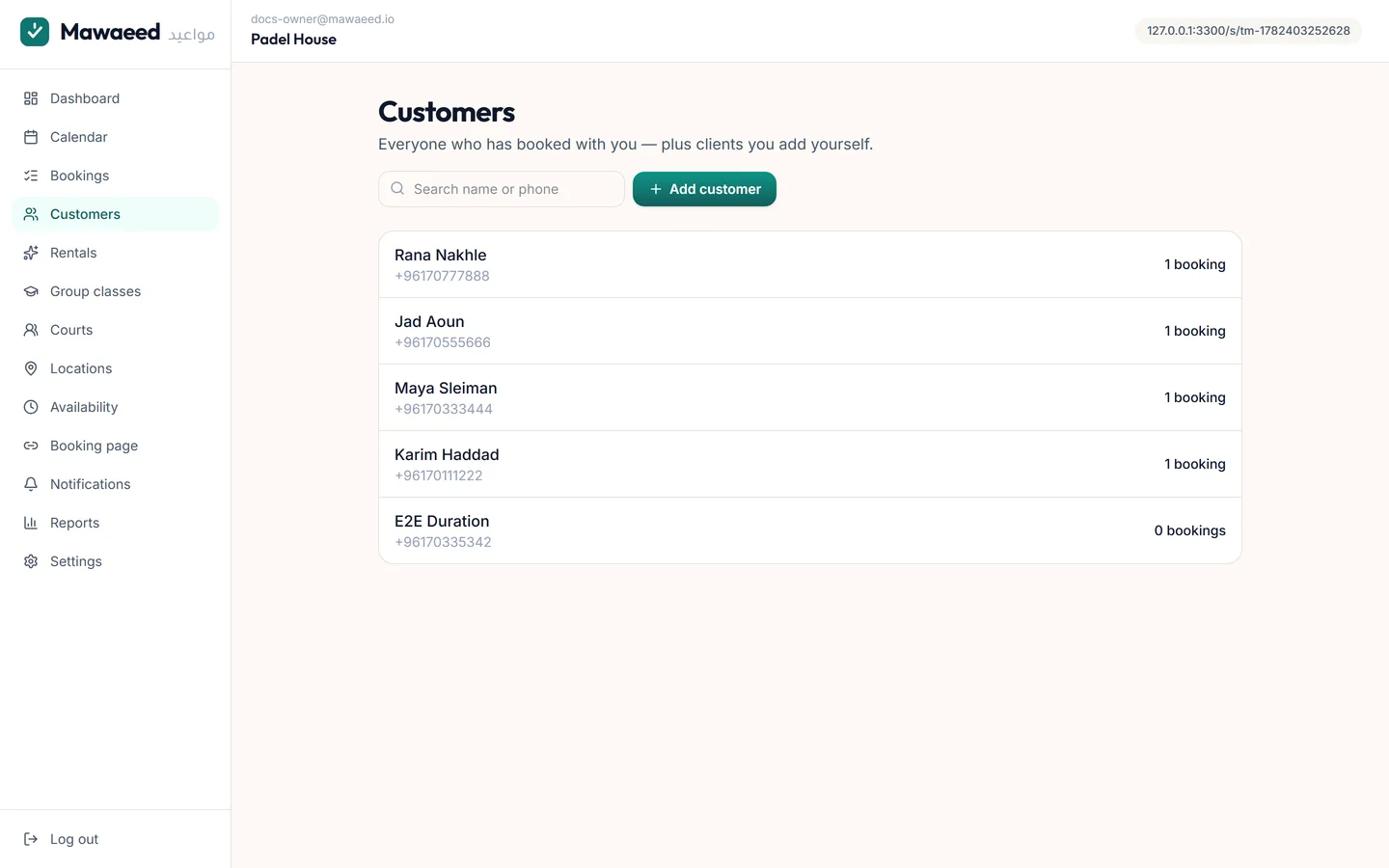
Everyone who books lands here with their visits, spending and no-shows. Search by name or phone, add a client yourself, and export the list to a spreadsheet. One profile per phone number, so a repeat client is recognised on every booking.

The customer list
2

A customer's file

Open a client to see their history, what they spent, their balance and your notes ("prefers Lara", "allergic to nuts"). Family members can be added under one client, so a parent books for their children.

3

Ask questions and keep visit notes

Switch on client records under Settings, Features, then open Client questions under Customers: questions clients answer when they book (their skin type, the property, an allergy), and notes you fill after each visit, with photos. They stay on the client's file.

4

Erase or delete a customer

Erase is for a client who asks you to remove their data: their bookings and totals stay in your records, their name and contact details are gone for good. Delete completely is for the test records you made while setting up. Both make you type a word first.

Tips

  • Neither can be undone, which is why the typed confirmation is there
5

Clients get their own account

Clients can open an account on your booking page with a code sent to their email, or keep booking as guests. Signed in, they see their upcoming and past bookings with you, book again in one tap, and their details are filled in for them.

Tips

  • Guest bookings still get a manage link, so clients can move or cancel either way

Classes and memberships

Group classes with a timetable, and memberships people pay for and use. For gyms, studios, clubs and clinics.

1

Create a class with a weekly schedule

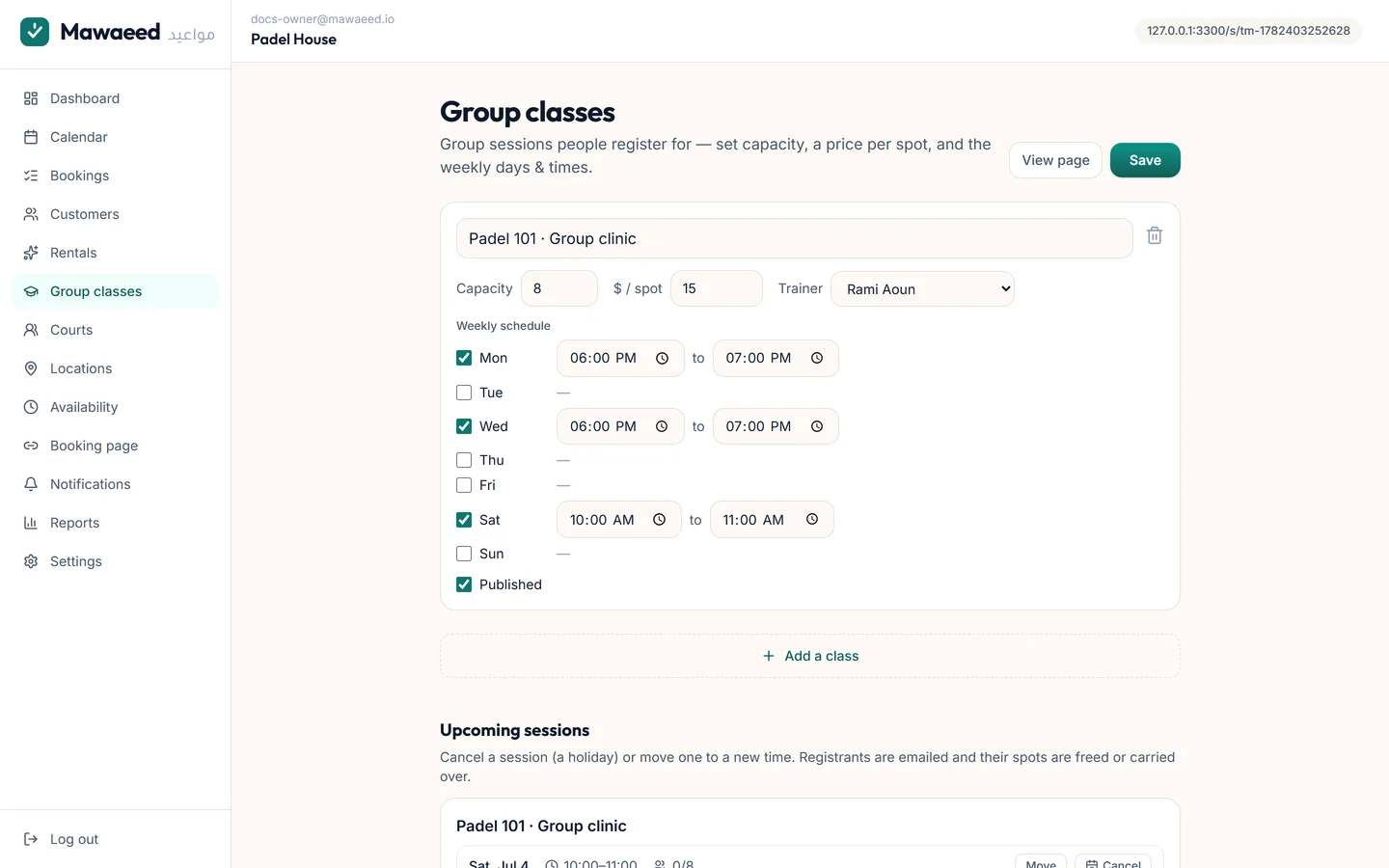
Under Group classes, create a class with a price, how many spots it has, an optional coach, and its weekly times (Mon and Wed at 18:00, Sat at 10:00). Sessions appear on their own for the weeks ahead, so you never create them by hand. Plan sessions adds one-off dates or a different rhythm. Cancel or move one session and everyone registered is told.

The group classes editor with its weekly schedule

Tips

  • Turn Group classes on under Settings, Features if you do not see it (it is on for gyms, pilates and education already)
  • The coach's calendar is blocked during the class, so private sessions cannot collide
2

Clients register on your timetable

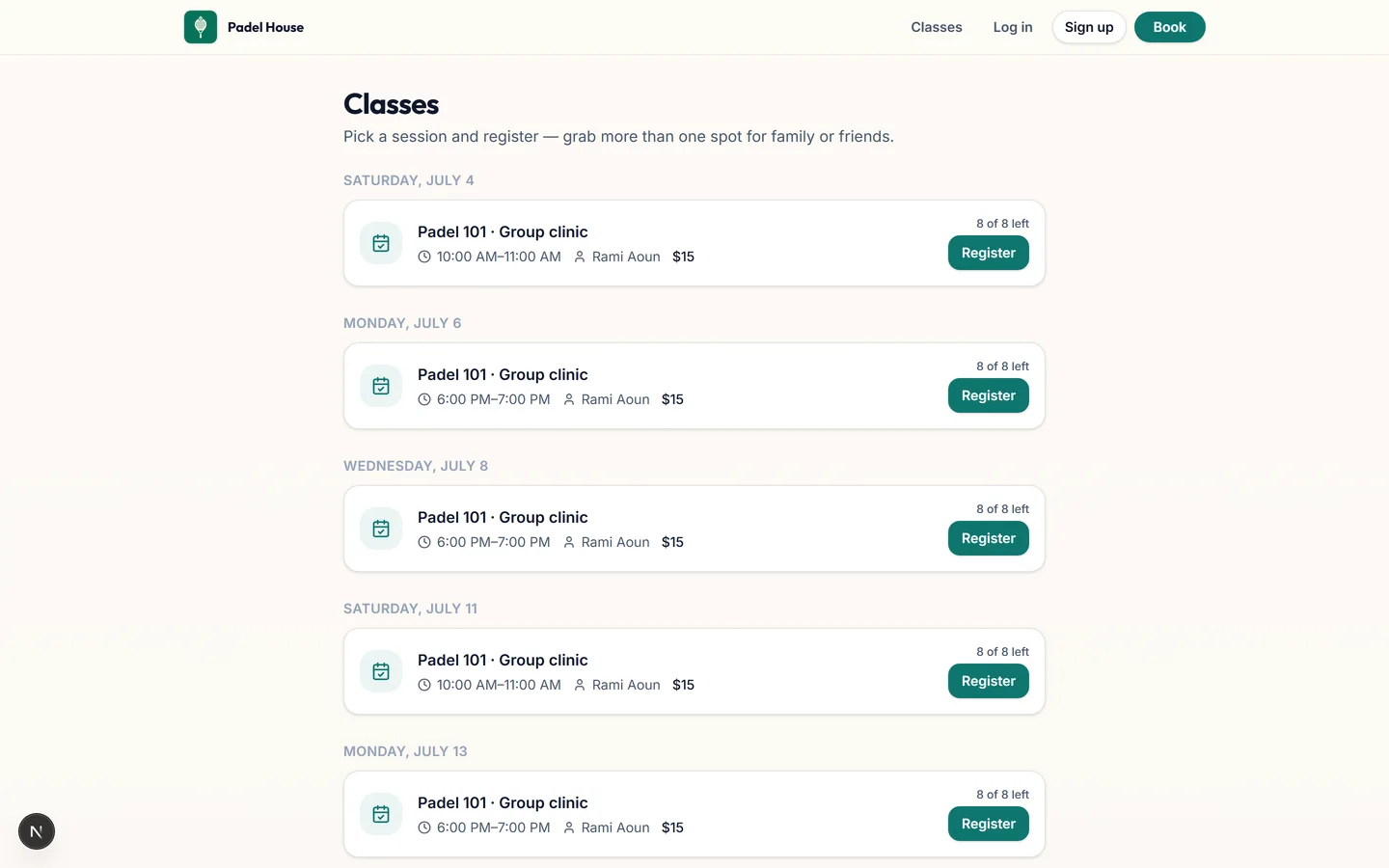
A Classes link appears on your booking page with the week's timetable. Clients pick a session and register; the last spot cannot be taken twice. Open a session on your calendar to see who is coming and add someone yourself.

The public class timetable

Tips

  • Clients can cancel from their confirmation link, which frees the spot
3

Create your membership plans

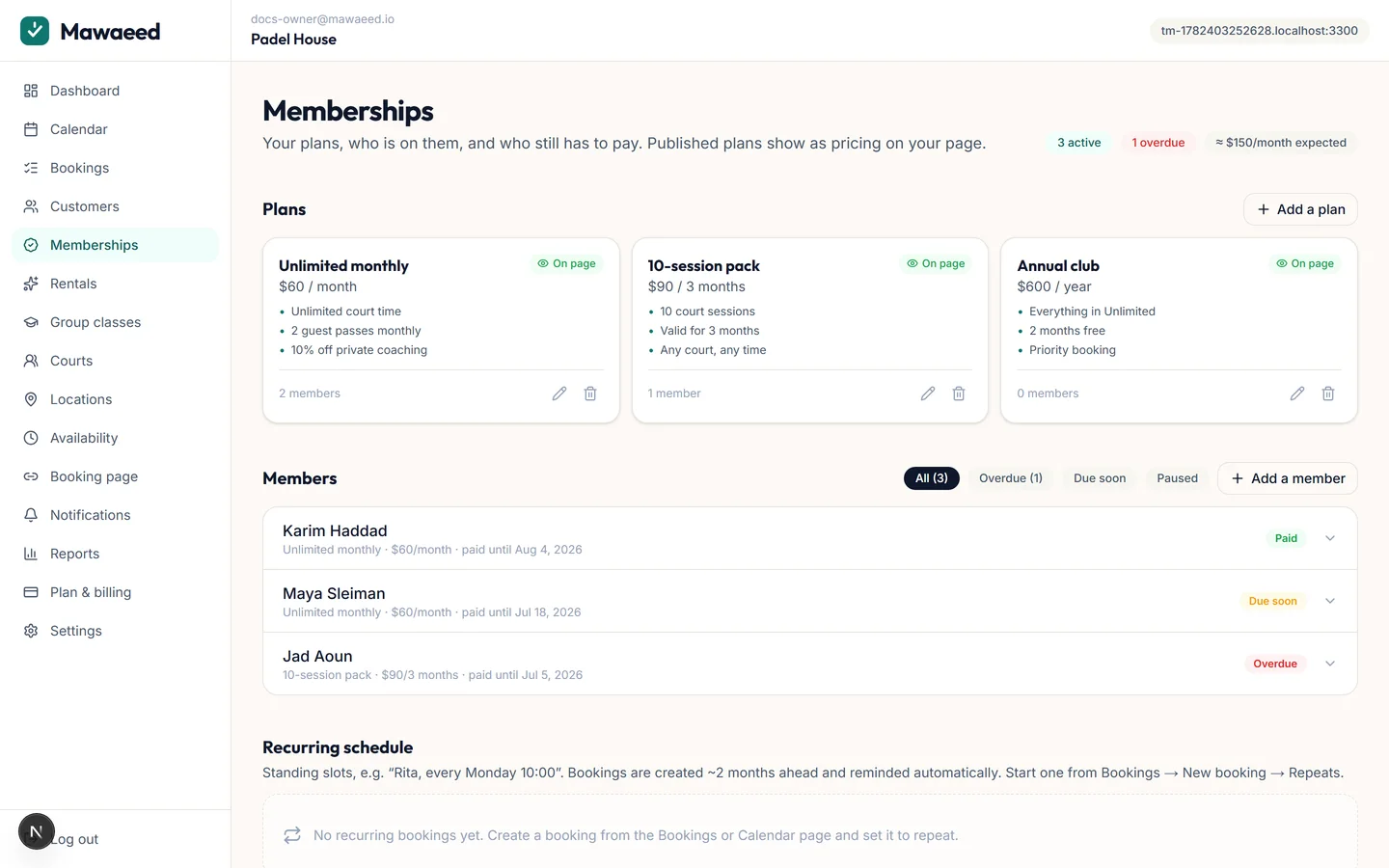
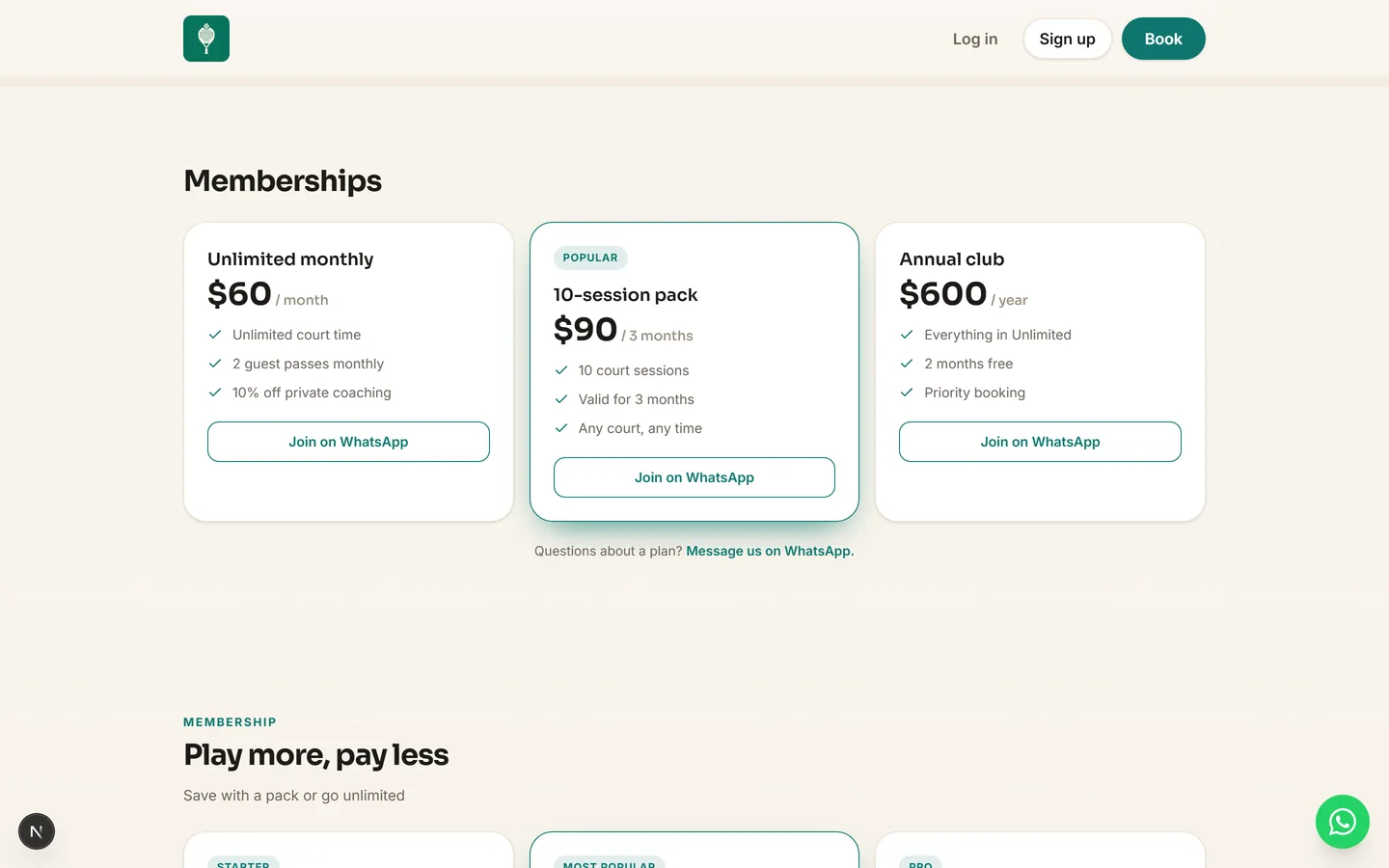
Turn on Memberships in Settings, Features (it is already on for studios and gyms), then create the plans you sell: a name ("Unlimited monthly", "10-session pack"), a price, the period it covers, and what is included. A plan can include a number of sessions of a service per week or per month. Flip Show on my page and the plan becomes a pricing card on your booking page.

The memberships manager with plans and members

Tips

  • Start with your two or three most popular plans; everything is editable later
4

Add members and record payments

Add a client to a plan (or create the client right there), then record each payment: how many periods, the amount and the method. Their paid-until date updates by itself, and every member shows as Paid, Due soon or Overdue. When someone falls behind, one tap opens WhatsApp with a reminder already written.

Tips

  • Deleting a payment rolls the paid-until date back
  • The member's plan and status also show on their file under Customers
5

Included sessions look after themselves

A member booking a service their plan includes uses their allowance instead of paying, and sees what is left this week or month on the confirmation. When the allowance runs out, the next booking is simply charged as normal. Members do not need an account: a booking from the phone number on their profile is recognised.

Tips

  • Cancelling a covered booking gives the session back
6

People join from your page, renewals remind themselves

A visitor can join a plan straight from your page with Join online: name and phone, no account. The membership starts as unpaid until you record the money. Three days before a membership is due, and on the day, the member gets a renewal note with the payment options you accept.

Membership plans on a live booking page
7

Put a member on a regular schedule

For a member who comes at the same time every week, use Repeats in New booking and tick that it is covered by their membership: every visit goes on the calendar at no charge.

Restaurants

Table reservations by number of guests, and your menu on your page.

1

Table reservations

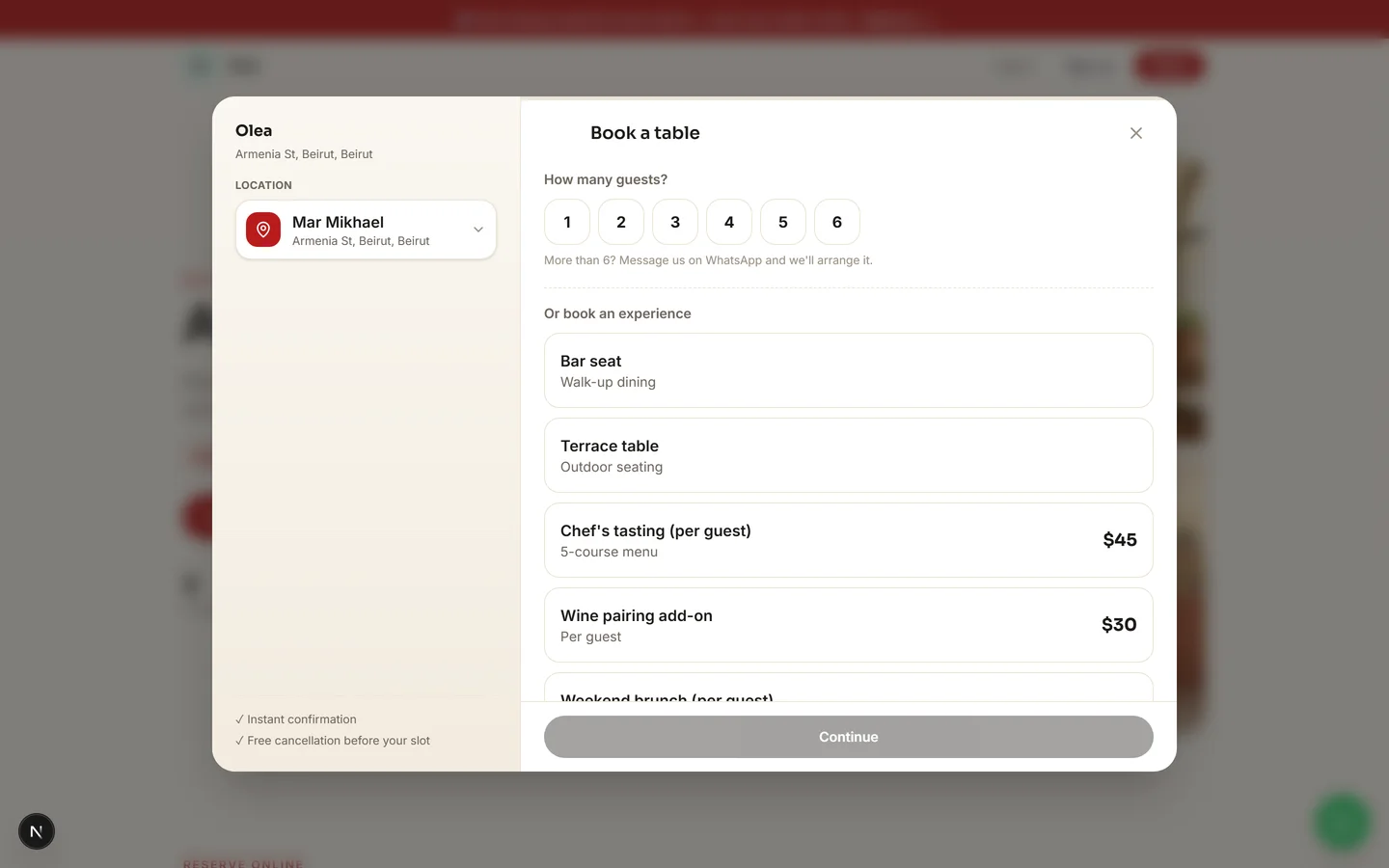
Restaurant pages open the booking window on How many guests?. Your real tables (two-seaters, four-seaters, bar, terrace) are what gets booked: several parties take the same 8 pm on different tables, and a couple gets a four-seater when the two-seaters run out. Experiences (a tasting menu, brunch, a private room) are bookable right below the guest picker.

The guests-first reservation window

Tips

  • A deposit on big tables stops no-show groups
  • The number of guests lands in the booking for your host
2

Publish your menu

Restaurants get a Menu manager: categories (Mezze, Grills, Desserts) and dishes with a price and a photo. A Menu section shows it on your page as a clean menu board, so diners browse what you serve before they reserve. Mark a dish unavailable when it runs out.

The menu manager

Tips

  • A photo per dish makes the menu look like a real menu, not a list
3

Tonight's reservations

The calendar shows every reservation at its time, with the number of guests and any notes, so the host knows who is coming tonight.

Car rental

Your fleet, daily rates, pickup and return times, and every car on one day chart.

1

Your fleet and rates

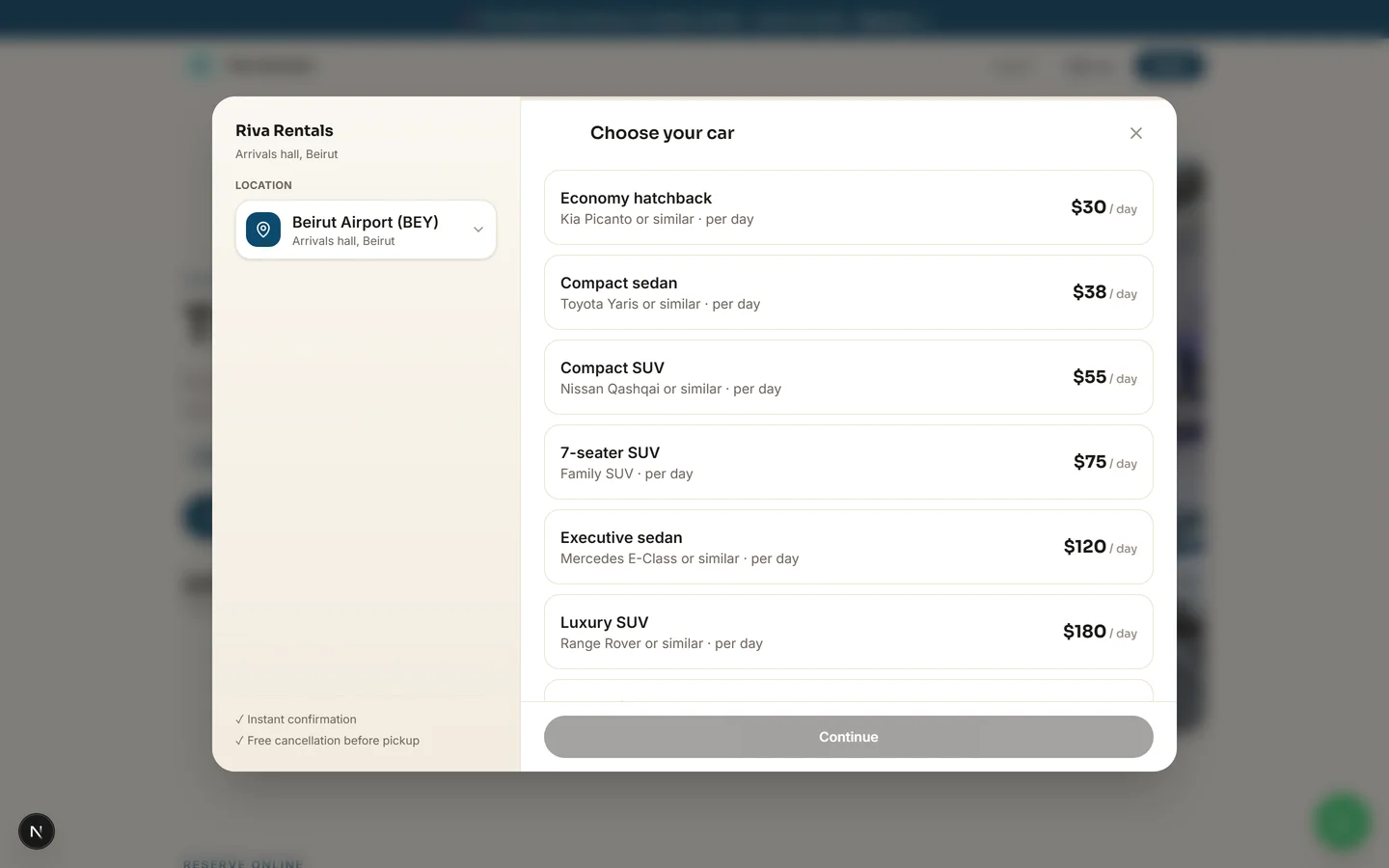
Each car class (economy, SUV, van) is a service with its daily price, and each physical car is a vehicle with its plate and branch. A class sells out only when every car in it is on the road. Rental hours set when cars can be picked up and returned.

The fleet on a car rental page

Tips

  • Weekly rates and a chauffeur service live in the same list
  • The deposit holds the car; the rest is settled at pickup
2

Rentals by date

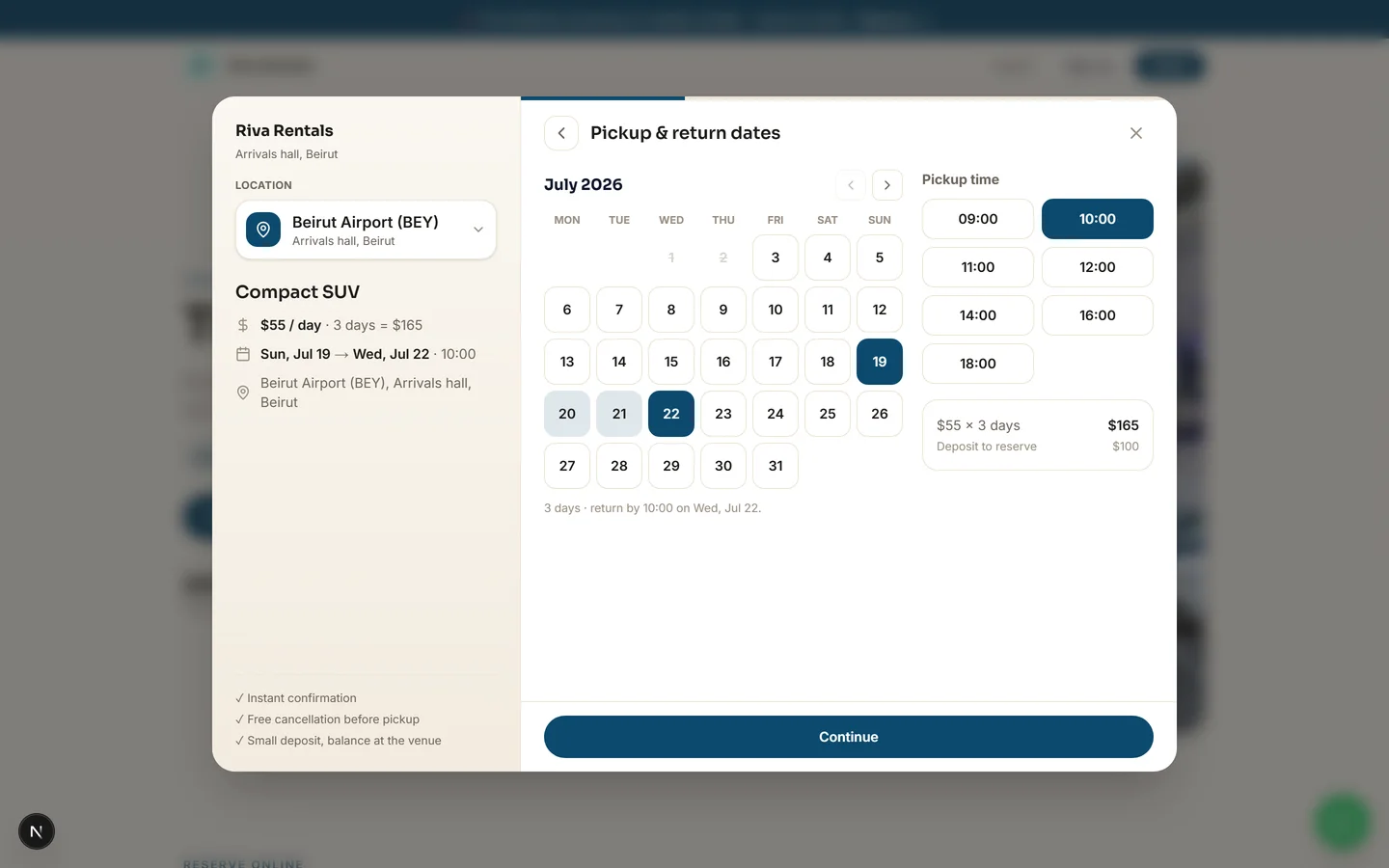
Clients pick a car class, then a pickup date and a return date, and the price multiplies by the number of days. Days that are sold out are struck through. A car returned in the morning can go out again the same day.

The pickup and return date picker
3

The fleet calendar

The calendar becomes a day chart with a row per car: who has it, from when to when. New rental books a car yourself for a walk-in or a phone call: dates, pickup time and client.

Chalets and stays

Chalets, guesthouses and cabins by the night, with requests you confirm and a calendar per place.

1

Your places and nightly prices

Each chalet or room is listed with its photos, its nightly price and how many guests it takes, with your check-in and check-out times and the deposit you ask for. Use the photo showcase layout so each place sells with its pictures.

2

How guests book a stay

Guests pick their dates first, then only the places free on those nights are offered, then their arrival time and details. The price multiplies by the number of nights. A place that checks out in the morning can welcome new guests the same day.

3

Confirm each stay yourself

Many hosts prefer to approve every stay. Switch on confirming bookings yourself under Settings, Booking policy: online stays then arrive as requests, you Confirm or Decline, and the guest is told. You can also choose whether a request holds the dates while it waits for you, or only once you confirm.

4

The chalet calendar

The calendar shows one row per place and one column per day, with arrivals and departures, so you see your whole season at a glance. Add a stay yourself for a phone booking, or block a place for maintenance.

Courts

Padel, tennis and football courts booked by the hour, across your branches.

1

Your courts

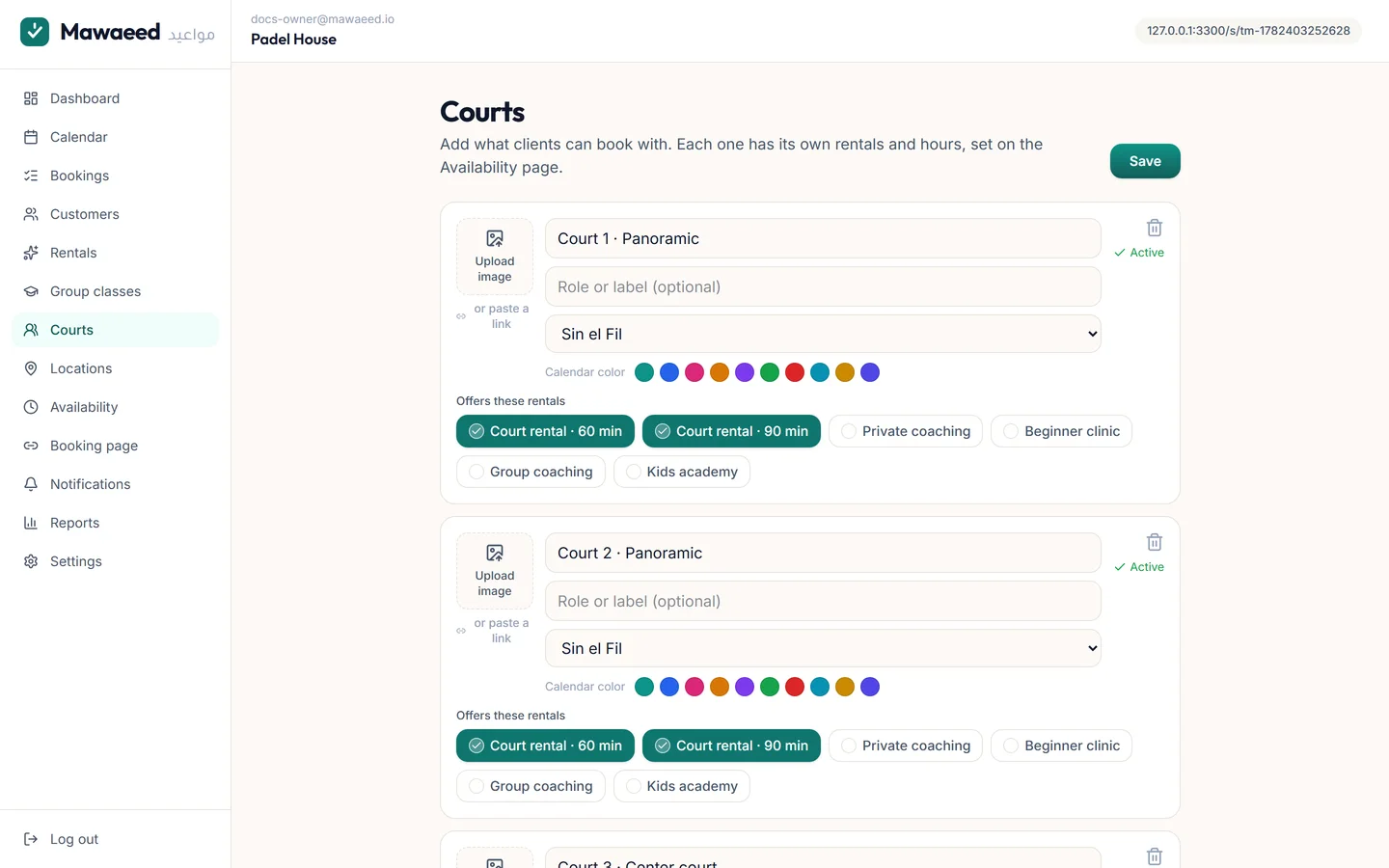
Each court is listed like a person on your team, so it has its own calendar, and your dashboard calls them Courts. Your court booking is a service with its lengths (60 or 90 minutes) and prices. With several branches, assign each court to its branch.

Tips

  • Coaching and lessons can be services of their own, with the coach as the person booked
2

How players book

Players pick the branch, the court booking and its length, then a free time: Mawaeed places them on whichever court is free, or on the court they chose. They get a confirmation and the usual reminders.

3

Memberships for players

Clubs often sell monthly plans or hour packs: see Classes and memberships. A member's covered bookings are logged at no charge.

Clinic

For dentists: each patient's dental chart, treatment plans, prescriptions and lab work.

1

Switch on the clinic tools

The dental tools are switched on by our team: message us on WhatsApp and Clinic appears in your menu. Everything else (bookings, reminders, payments) works as for any business.

2

A patient's dental file

Open a patient under Customers, then their Dental file: the chart of their teeth, where you mark what you found or did on each tooth, with notes and the date.

3

Treatment plans

Write a plan with its steps and prices, share it with the patient, and book each step as an appointment. The money part is visible to the owner and full-access team only.

4

Prescriptions and lab work

Write a prescription and print it for the patient. Send work to a lab with its sheet, and follow it from Clinic until it comes back.

Taxi office

Ride requests on a dispatch desk, and each driver's rides on their phone.

1

How clients book a ride

On a taxi page the booking window asks where (the pickup and the stops, in order), when, and who, then sends the request to your office.

2

The dispatch desk

Dispatch shows every request. Set the price, pick a driver and confirm, or decline. The client is told, and the ride appears on the driver's list.

3

Your drivers' phones

Each driver has their own login and opens My rides: today and coming up, the route with a tap to navigate, what to collect, then Done or No-show.

Meetings

For agencies and consultants who book their own time: meetings instead of sales.

1

Mawaeed for meetings

In meetings mode the dashboard speaks your language: Your day on the home screen, meeting types instead of priced services, and no payments, invoices or revenue screens. Message us on WhatsApp to switch your dashboard to meetings.

2

Know who you are meeting

Add questions clients answer when they book (the property, the budget, the timeline) and keep notes after each meeting with the next step: see Ask questions and keep visit notes under Customers.

Team, alerts and messages

Logins for your team, who gets booking alerts, and what your clients receive.

1

Give your team a login

Under Who has access, invite someone by email and choose their access: Full access (everything except this page) or Bookings and calendar (the day-to-day pages: calendar, bookings, customers and payments). They get an email invitation to join.

Tips

  • A team member's login is theirs: nobody needs to share yours
2

Booking alerts

Notifications sets who is alerted when a booking comes in or changes, by WhatsApp or email, plus a weekly summary. Phone alerts are switched on per device once the app is installed: see Install the app.

3

The messages clients get

Also under Notifications: the wording of every message clients receive, with details you can insert (their name, the time, your address) and a preview before you save.

Message templates under Notifications
4

Sync with your own calendar

Settings, Calendar sync connects Google or Microsoft: every booking is added to your own calendar and kept up to date when it moves or is cancelled. The calendar feed link works with any other calendar app.

Reports, settings and your plan

Your numbers, your rules, your wording, and your plan.

1

Reports

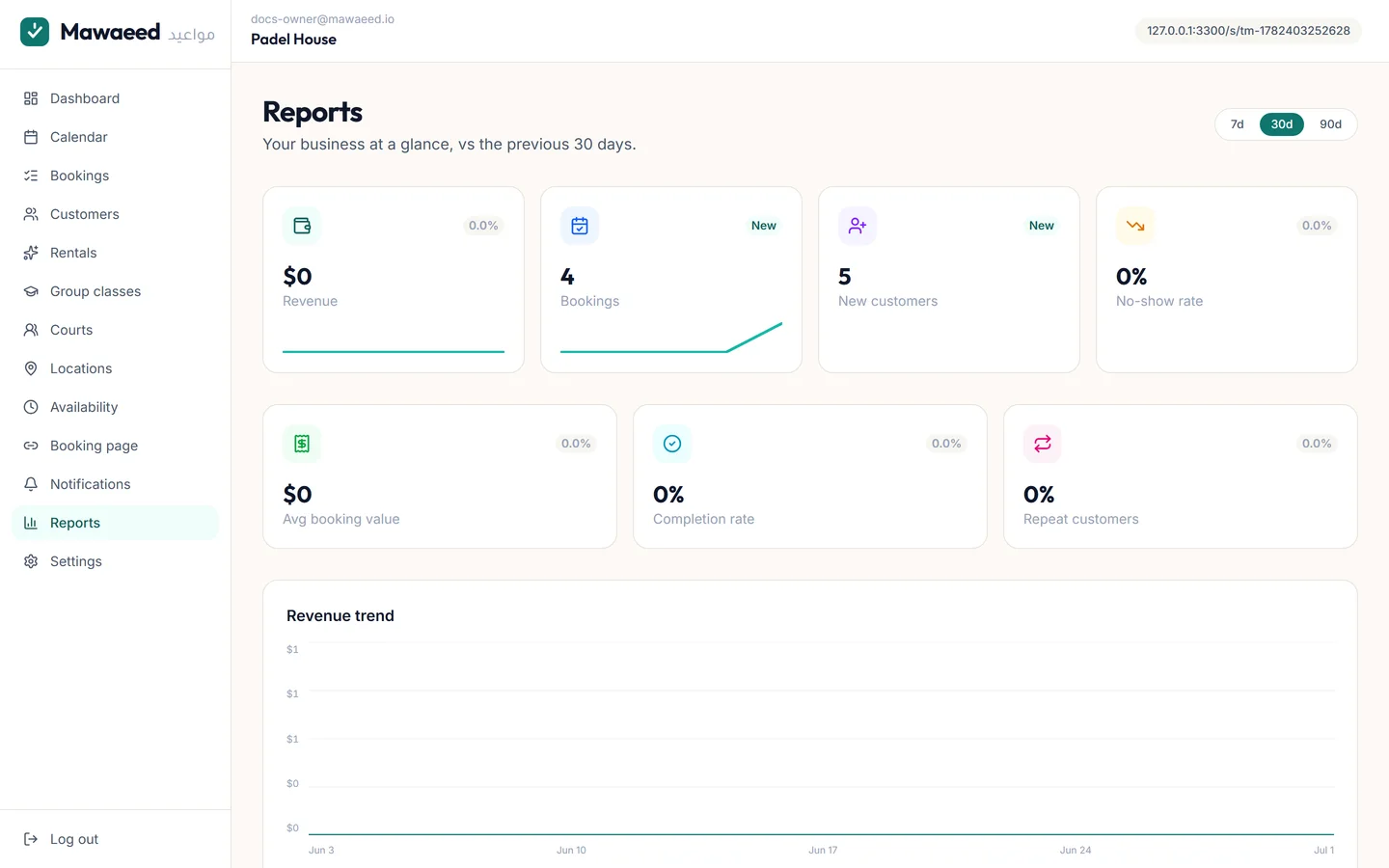
Reports shows the month, the year or any period: money in, what is left after expenses, bookings per service and per person, and the clients who have not been back in a while. Download any report.

The reports page
2

Your business details and booking rules

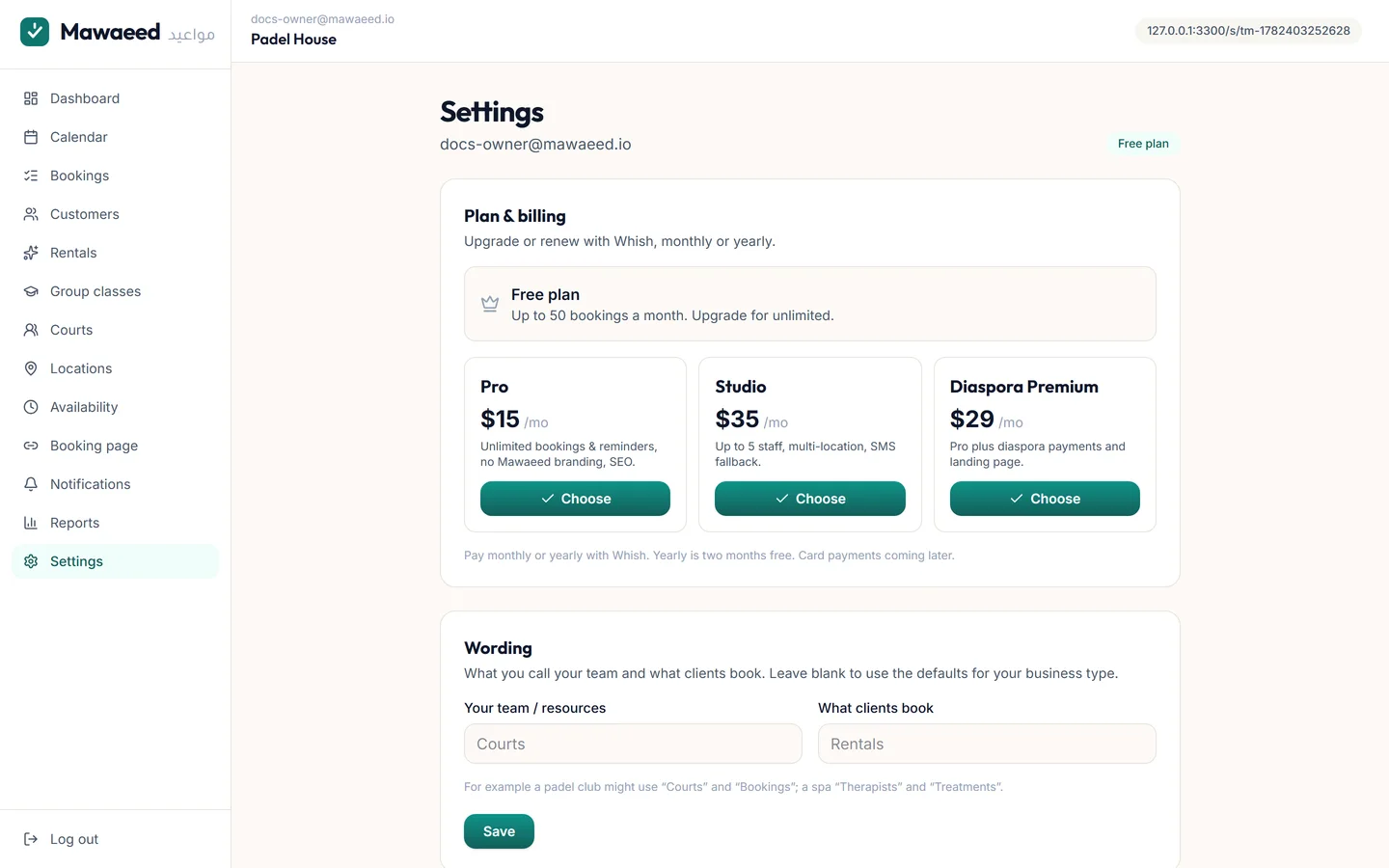
Settings holds your business profile (name, about, address and map pin, WhatsApp, socials) and your booking policy: the start times offered, how far ahead clients can book, free cancellation up to when, and whether clients need an email to book. Untick the email and people book with a name and phone only.

The settings page
3

Switch on the tools you need

The Features card keeps your dashboard simple: Group classes, Memberships, Multiple locations and client records stay hidden until you switch them on, and you can rename how they appear in your menu. Wording renames the rest: Staff becomes Courts, Services becomes Treatments.

Tips

  • Turning a feature off hides it from your menu and your page. Nothing is deleted
4

Change your booking link

Settings, Your booking link renames the address clients use. Type the new name, confirm, and it works immediately. The old address forwards to the new one for 30 days: your window to update your Instagram bio, messages, printed cards and QR codes.

Tips

  • Once the 30 days are over, the old address stops working
5

Your data

Your data, under Settings, downloads everything: clients, bookings and payments, as spreadsheets you can open anywhere.

6

Your plan

Every new business starts with 14 free days of the plan it chooses: Pro or Studio. Plan and billing shows your plan and this month's use. Pay monthly or yearly by Whish: send the transfer, upload the screenshot, and we confirm it within the day. Need more WhatsApp messages? Get a pack of 100 there too.

Tips

  • If a plan ends unpaid, everything keeps working for 5 more days. Then online booking pauses and the dashboard becomes read only until you pay; sending your payment reopens it while we confirm. Nothing is deleted

Start taking bookings today

14 days free, no card required. Set up in five minutes.

Start your free trial

Already have an account? Log in